Update Study Info
Last updated: June 23, 2026
The Study Info section is where you define the key metadata, configuration settings, and participant experience for a study. Below is a breakdown of each field and what it controls:

Study Info Overview
Field | Description |
Study Name | The internal and public-facing name of the study. This is displayed to participants in the app and qualification forms. |
Study Description | A short description summarizing the focus or purpose of the study. This is visible to participants in the My Studies section of the app and should be clear and participant-friendly. |
Study Type | Chose between "Clinical" and "Consumer" from this drop down list. Used for filtering and reporting. |
Organization | The name of the organization conducting or sponsoring the study. This helps track study ownership and is shown in participant communications. |
Study Length (Days) | Sets the minimum duration a participant will be shown as enrolled in the study, regardless of whether they have assigned forms or templates. This value typically reflects the length of the screening phase (e.g., 14 days), or the full duration of the study if no additional phases are added. In the app, participants will initially see this as their study duration. If additional activities (e.g., a 6-week intervention) are assigned later via study templates or individual forms, the app will extend their visible study timeline accordingly. This field educates participants on their minimum commitment at the point of entry. |
Category | High-level category or topic of the study (e.g., Gut Health, Sleep). Used for filtering and reporting. |
Study Introduction | This is the first description a participant sees about the study, displayed on the very first screen of the qualification flow — before they enter their email address. It should be a clear and concise summary that describes the purpose of the study, what’s involved, and why it might be relevant to them. This is your first chance to inform and engage potential participants, so it should be friendly, informative, and easy to understand. |
Background Image | Used to visually brand the study in the My Studies section of the app. It appears as the header image and on the study card. Ideal for reinforcing organizational or study-specific branding. |
Font Color | Defines the text color used throughout the My Studies page for this study. It should contrast well with the selected background image or color to ensure readability. |
Background Color | A solid color that can be used in place of a background image to visually brand the study while keeping it on-theme with the organization or study color palette. Useful for minimal branding or color-consistent design. |
Share URL | Link to the public or shareable study landing page. Used in recruitment and outreach. Allows participants to share the study information from the app directly. |
Start Date | The date when the study begins. Used for internal tracking and reporting. Typically the date that recruitment begins and a study moves from Testing to Active, Recruiting. A system generated value. |
End Date | The date when the study ends. Used for internal tracking and reporting. A system generated field, populated when "Stop Recruiting" is selected for the study. |
Intake Form Template | Required for all studies. This is typically the first form a participant completes after passing the qualification flow (if one is included). It usually contains a data sharing agreement, informed consent, or acknowledgment of study participation. In some studies, it may also collect demographic data or include sub-study consents. This form establishes the participant's formal enrollment and agreement to proceed. |
Qualification Form Template | Required only if the study includes a pre-intake or pre-consent qualification flow. This form screens participants for eligibility before they can access the intake form. When a qualification form is mapped here, the system will automatically generate a study URL in the Study Info section. This URL can be shared externally (e.g., email, social, web) to direct participants into the study via the qualification pathway. |
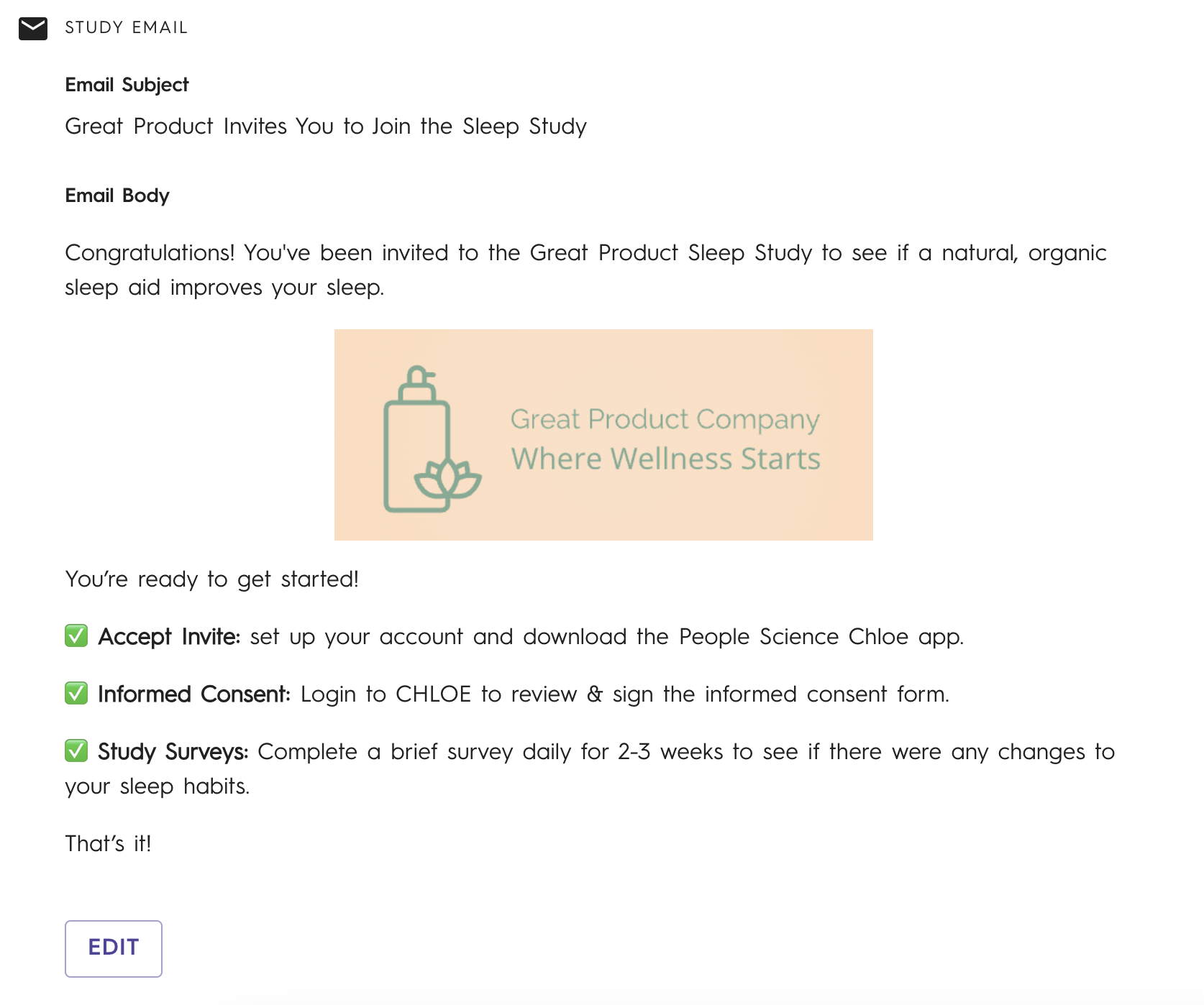
Automate study invite after qualifying? | Toggles whether Chloe will automatically send the invitation email and access to the consent document after qualification. If Yes, the participant will receive the study invitation email to confirm their email address, finish creating their account, and download the Chloe app to complete the consent form. If No, the participant will be notified that they qualified and that a study team member will be in touch. Study invite emails will need to sent manually by the study team. |
Allow participants to self withdraw? | Toggles whether the participant will be able to withdraw them selves from the study on the My Studies screen. |
Study Template Report Description | Text shown on the downloadable or shareable My Results Report (PDF). Should summarize the goal or outline of the study. |
Enable Share Result | Enables the button "Share My Results" to populate on the My Studies screen for participants. This generates a PDF of their Study Screen. |
Enable off hours message | When disabled, the in app chat will automatically send a message to a participant letting them know that the study staff is only available during business hours. When enabled, the default message is not sent. |
Time Zone | Allows the study team to specify their primary location, which informs the display of the "off hours message" described above. |
Qualification Form URL | Custom URL that is automatically generated in Chloe if you have mapped a Qualification Form Template above. |
Study Email Overview
Customizable email message sent to participants when they are invited to join the study. Should include instructions or next steps.