How to Make a Copy of a Form
Last updated: July 25, 2025
When you're building out multiple studies in Chloe, it's often helpful to reuse forms you've already created. Chloe allows you to quickly copy forms from one study to another or within the same study without needing to rebuild from scratch. Here's how to do it:
🔁 Step-by-Step: Copying a Form
Go to the Source Study
From your Chloe dashboard, open the study that contains the form you'd like to reuse.
Open the Forms List
Navigate to the Forms section of the study. This will show a list of all forms that have been created in that study.
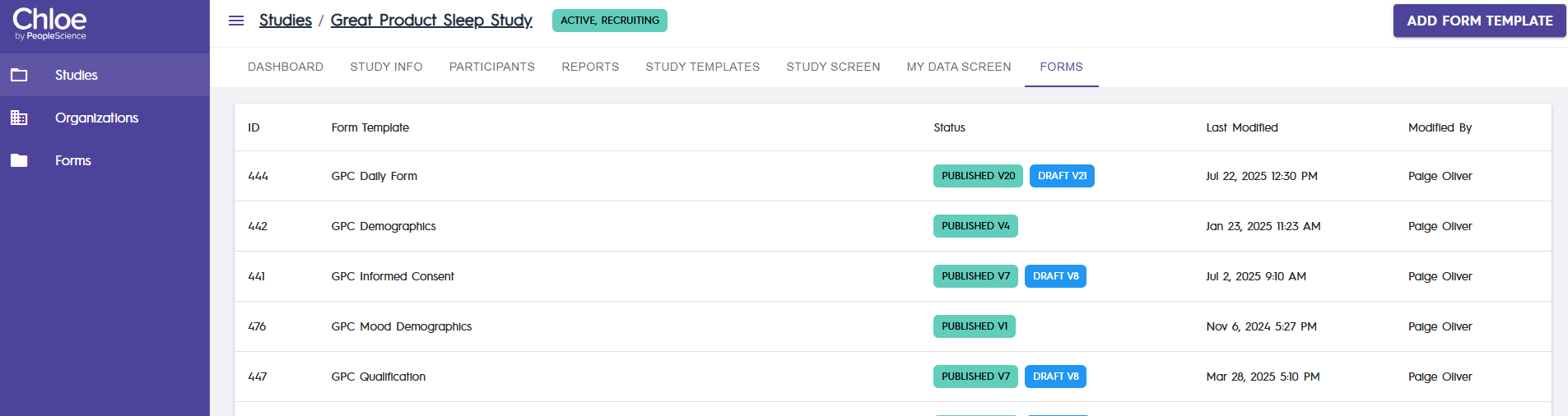
Select the Form You Want to Copy
Click into the form you want to copy. This opens the form editor.
Click the Three-Dot Menu
In the top-right corner of the form editor, click the three-dot icon (⋮) to open the options menu.
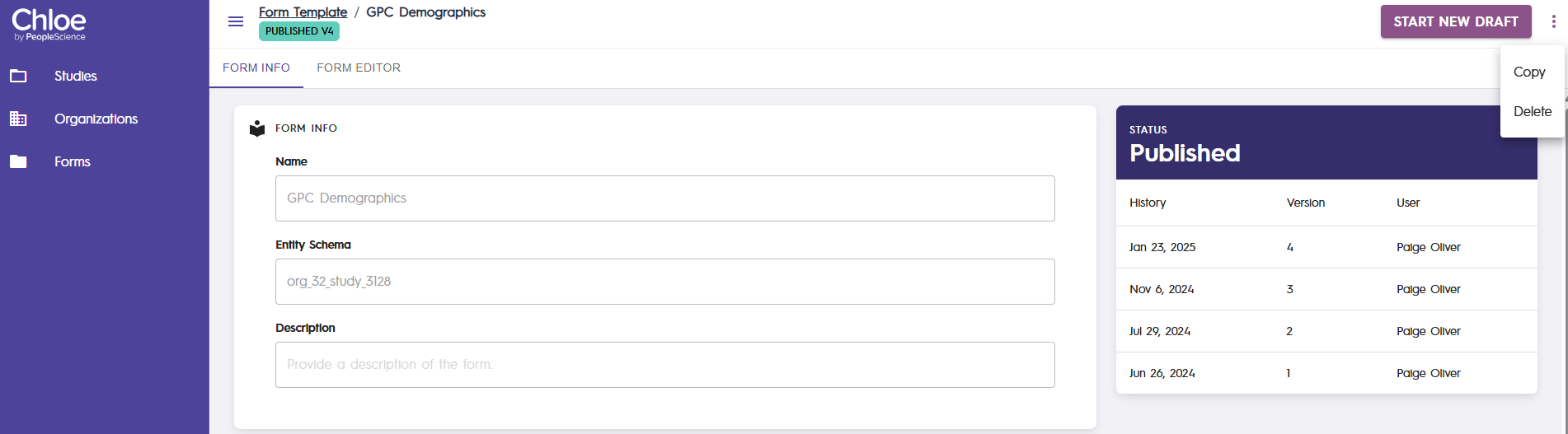
Choose “Copy”
Select Copy from the dropdown. This will open the copy settings modal.
Choose the Destination Study
In the copy modal, you’ll see a list of studies under your organization. First, expand your organization folder to see the full list.
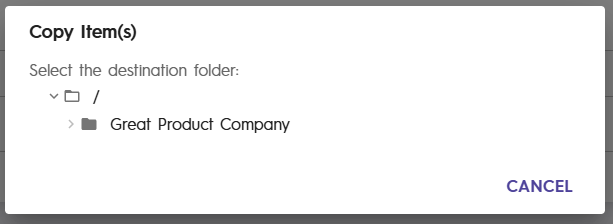
Select the study where you'd like to copy the form.

Confirm the Copy
Click Copy to finalize the action. You’ll be automatically redirected to the form editor of your newly copied form.
The New Form name will follow this syntax:
Organization Name - Study Name - Form Name
📝 Notes & Tips
All form logic, transitions, and styling will be preserved in the copy.
Consider renaming the form after copying if needed to avoid confusion.
Only users with access to both studies will be able to copy forms across them.
Copying to different study form types is not currently available.
Reach out to your account manager if you would like to copy a study form to a qualification form or an intake form.