Managing Organization Users
Last updated: May 2, 2025
This article covers the steps for adding, managing, and removing organization users. Organization users are typically non-participant users, such as administrators, coordinators, or analysts who require access to your organization's account but do not participate directly in studies.
Adding a Organization User
Navigate to Organization Info:
Log into your account.
Click on your organization.
Add a New User:
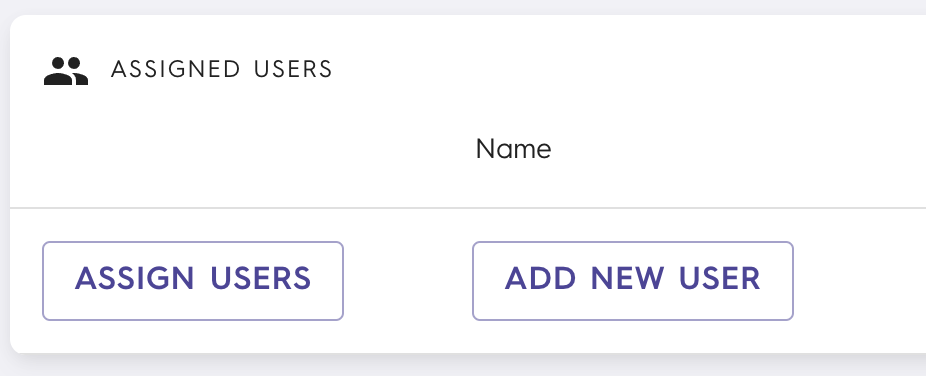
On the Organization Info page, locate the 'Assigned Users' section.
Click 'ADD NEW USER'.
Enter User Information:
Input the user's details, including their email address and role.
Choose whether to invite the user to access the Chloe portal and create their user account.

When inviting a new user to Chloe, the invited user will receive an email invitation with instructions for account setup.
Remind users to check their spam folders if they do not see the invitation email!
Managing User Access and Roles
Organization-Level User Access
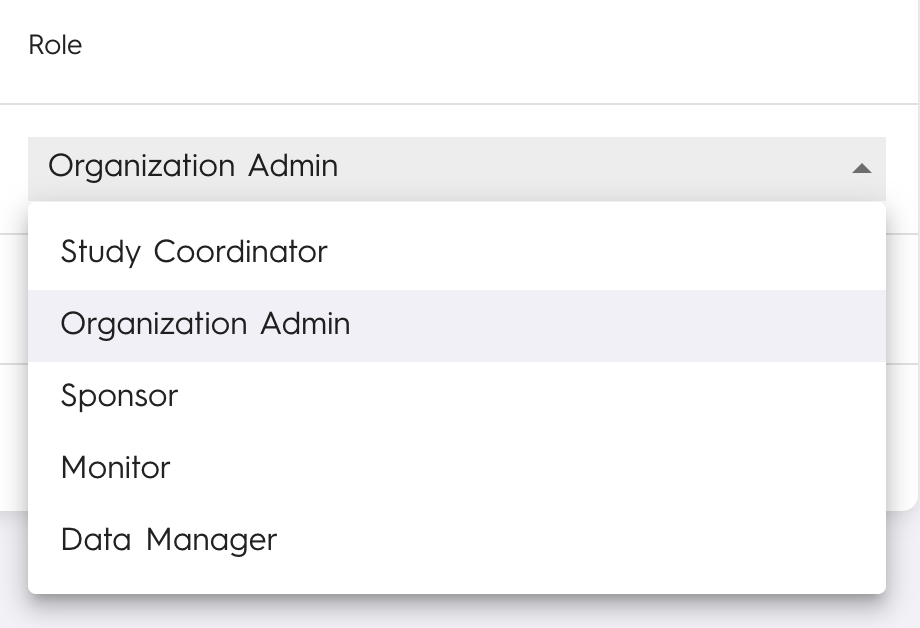
Modify User Roles:
From the Organization Info page, go to the 'Assigned Users' section.
Select users to change their roles or permissions as needed.
Reviewing User Access:
Periodically review user permissions to ensure proper access control.
Ensure user roles reflect current responsibilities within your organization.
Study-Level User Access
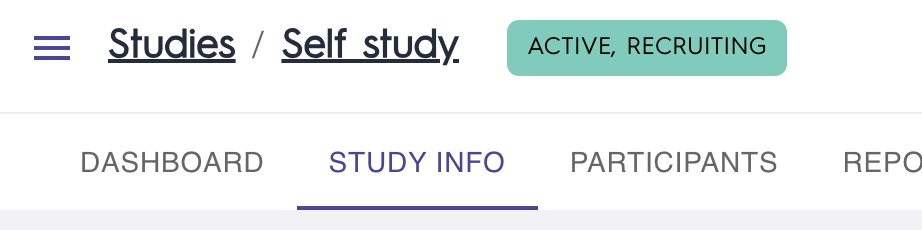
Navigate to Study Info:
Go to the specific study's information page.
Manage Access Permissions:
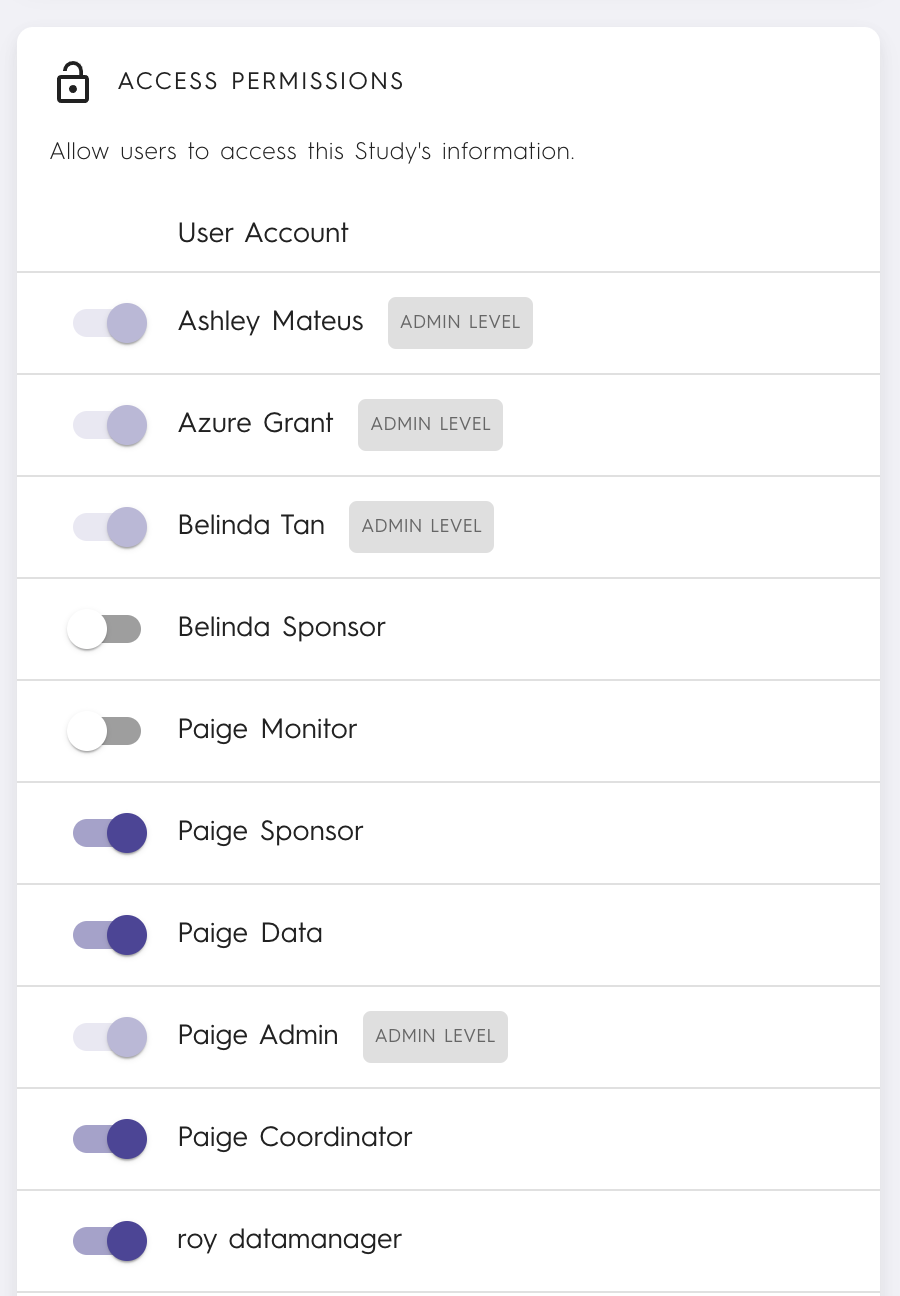
In the 'Access Permissions' window, you can grant users access to the study information.
All Organization Admins automatically have access to all studies and cannot have their access removed.
Other roles such as study coordinator, sponsor, monitor, and data manager must have access explicitly granted by an Organization Admin.
Removing Non-Participant Users
Navigate to Organization Info:
Log into your account.
Click on your organization.
Select and Remove User(s):
On the Organization Info page, locate the 'Assigned Users' section
Select the user you wish to remove.
Click 'Remove' or the delete icon.
Confirm the removal. The user will no longer have access to the organization's account.
Important Considerations
Role Accuracy: Always assign roles and permissions that reflect user responsibilities and avoid overly broad access.
Security Audits: Regularly audit user access to maintain optimal security and compliance.
Immediate Removal: Promptly remove users who leave your organization or no longer require access to maintain security integrity.