How To Enable Biometrics In The Chloe Mobile App
Last updated: September 18, 2025
This knowledge base article will provide step by step instructions on how to enable Biometrics in the Chloe Mobile App. Enabling Biometrics will allow a user to log in using face ID instead of entering their email address and password when they wish to use the app.
Launch the Chloe Mobile App.
Log In using your email address and password.
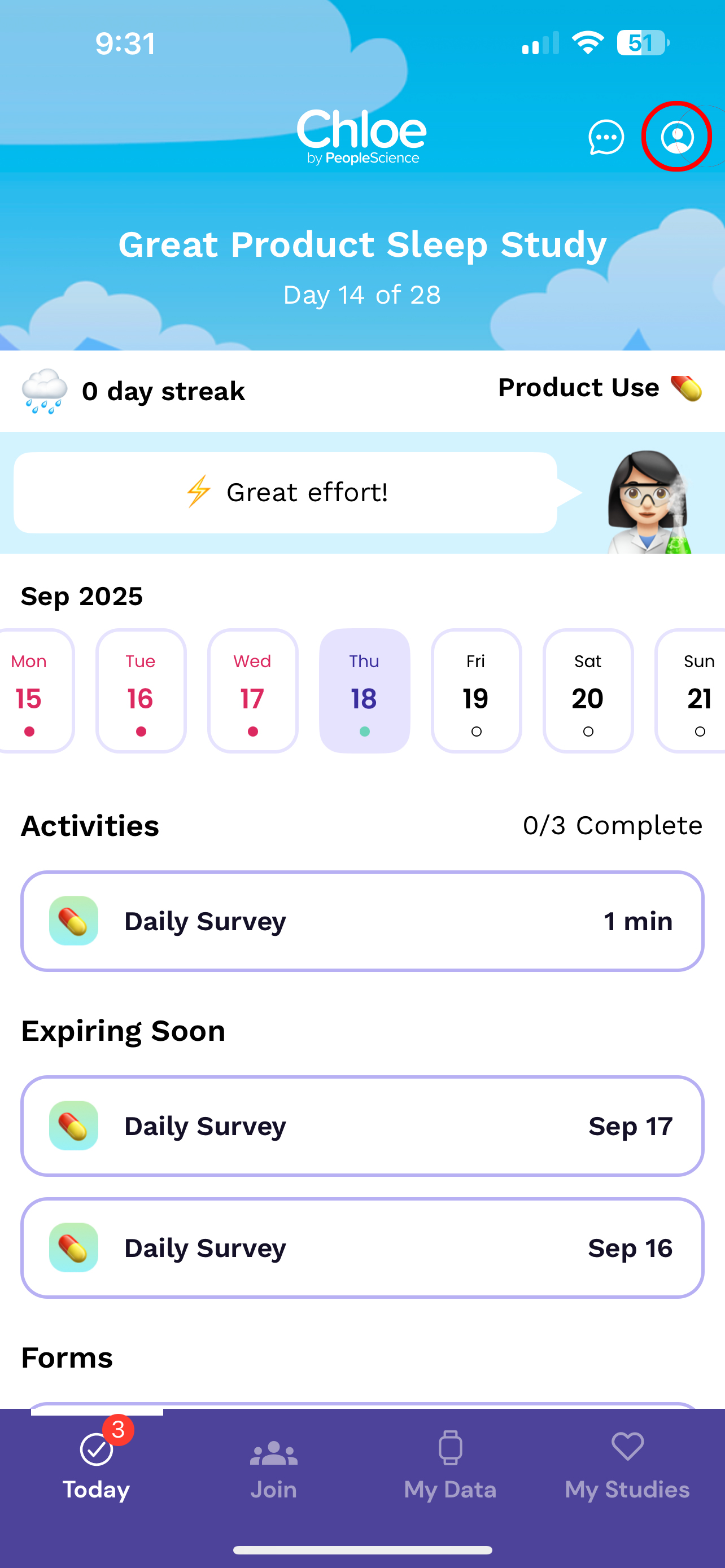
On the home screen, click the "Profile" icon, which can be found in the upper right hand corner of the screen. This icon resembles a persons head and shoulders, surrounded by a circle. The icon is circled in red in the screen shot below.
Once on the "Profile" page, scroll down to find the "Face ID / Touch ID" section. Click on this.
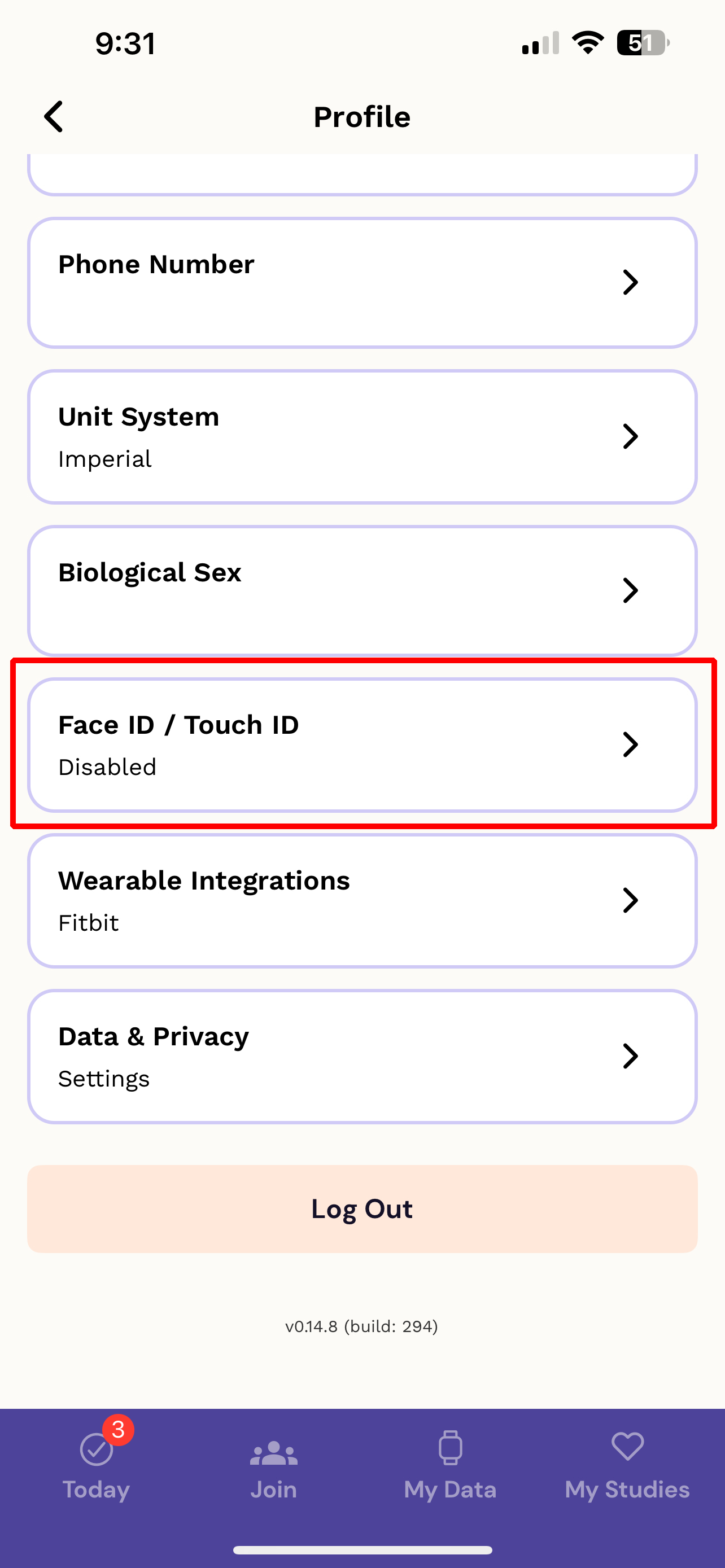
Click the “Face / Touch ID” slider to move it to the right, changing the background color of the slider to blue.

Click the left pointing arrow in the upper left hand corner of the screen to take you back to the Profile page, then scroll down to the bottom and click "Log Out". You will be directed to the Chloe log in page.
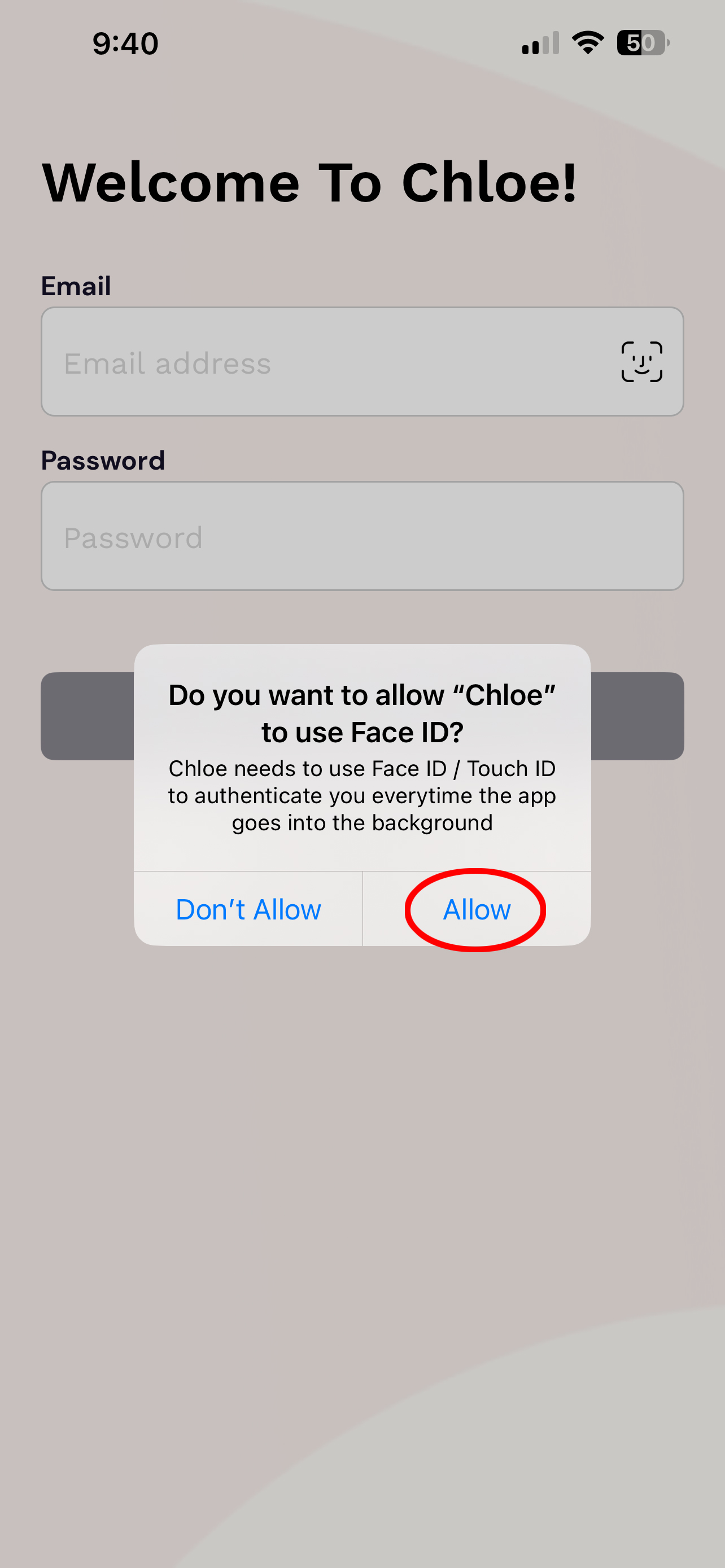
On the Chloe Log in page, you will see a Face ID icon on the right hand side of the field for your email address. Click on this icon.

Your phone will display a message with text like "Do you want to allow Chloe to use Face ID?" depending on your operating system. Click "Allow".
Congratulations, you are now configured to use Biometrics in the Chloe app.