Screen Fail Automation
Last updated: June 25, 2026
A participant's status can now automatically be set to "Screen Failed" based on a response they provide in a questionnaire. This automation can be configured using a Participant Status Change Form Element in a form.
The Participant Status Change Form Element can be found below the Redirect and Assign Study Template elements in the Element Type drop down menu in the Form Builder.
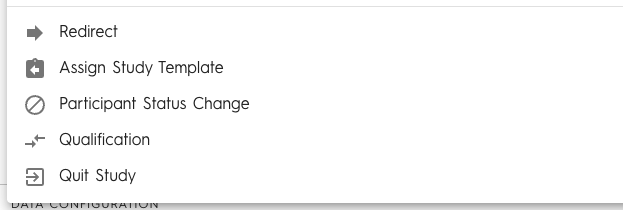
Add this Element Type to a section, then define logic in your form to navigate the workflow through this section when you wish to auto screen fail a participant.
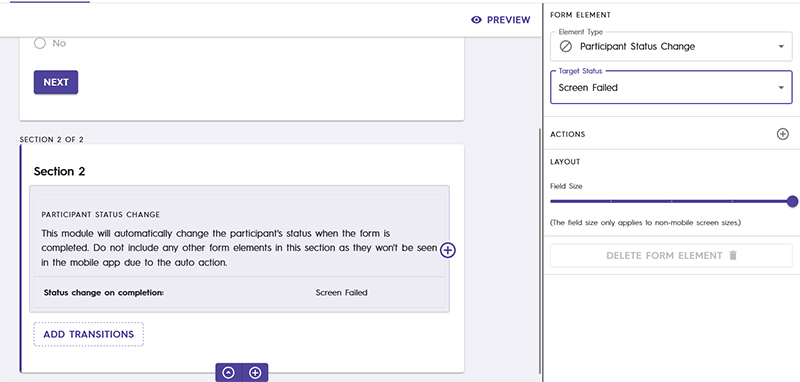
Upon execution of the Participant Status Change Form Element:
A screen-fail message is sent to the participant.
The participant is not allowed to navigate back into the questionnaire, thereby forbidding them from making changes to their responses which would otherwise not lead to a screen fail.
When the participant finishes (clicks the Close button at the bottom of the screen fail notification message), they are routed to the My Studies screen.
Participant status is updated to Screen Failed and their Screen Failed date is set to today's date.
Good to know: Previously, advancing a participant to Screen Failed and completing the associated bookkeeping (e.g. sending the screen-fail message, setting the date) was handled manually after a participant finishes a form. This feature makes that transition configurable directly on the form element so it completes automatically and consistently, reducing coordinator effort and reduces/eliminates potential data-entry errors.