Form Builder Fundamentals: Form Info Tab
Last updated: August 5, 2026
The Form Info tab is where you can configure options and details on your form.
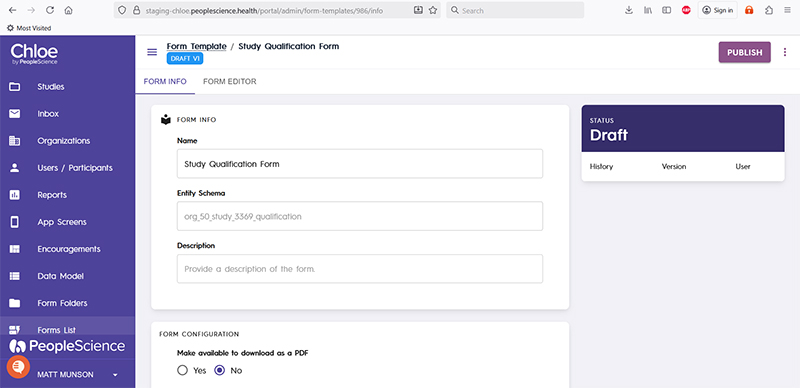
At the very top of the screen is the name of the form you've selected, and the folder in which it can be found. In the example above it is Form Template / Study Qualification From. Though technically not part of the Form Info tab, this information along with the version info, is relevant.
Below the form name, you will find information about the status of the form. It will be either in Draft or Published state. If your form has been published, it will show both the version that is published, and the version that is in draft. The published version of the form is the form that is available to participants in the app. The draft version is the version that is currently under development in the Form Editor.
On the right hand side of the screen you can see the version history of the form, and also it's current status. In this example, it is in Draft.
The Form Info section of this tab contains three fields.
Name - This field is editable, and should be something that describes the forms function.
Entity Schema - This field provides technical information about where data from this form is saved in the Chloe database and is read only.
Description - This is a free form text field that can be used at the designers discretion. Information in the description field will not be visible to participants.
The Form Configuration section contains another set of options.
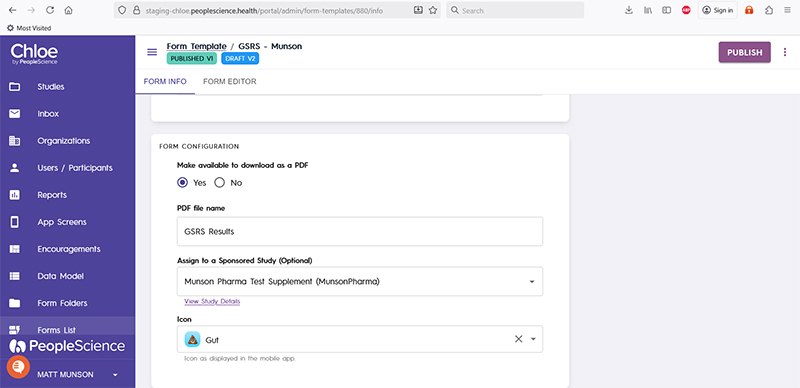
Make available to download as PDF - If you wish to allow your participants to download a copy of the form once they have filled it out, you can indicate this here. If selected, participants can access the pdf in the My Studies section of the app, within the study card for the target study.
PDF File Name - The text used in the Chloe Mobile App linking to the pdf.
Assign to a Sponsored Study (Optional) - Allows you to select from all of your studies in Chloe. // needs more detail. Not super sure what this does.
Icon - Lastly, you can select an icon from a drop down list, which will be displayed next to this form in the participant app. It's a fun way to keep participants engaged and make the Chloe experience a little more interesting.

Only the icon is displayed, not the text. You can use these icons at your discretion. There is no impact to the study if you use a the Skin icon for a questionnaire about pain, for example.