Participant Message Dashboard for Study Staff
Last updated: May 27, 2026
Chloe can present to study staff a consolidated list of all messages submitted by participants through the Chloe Mobile App or Chloe Web App that have not yet been replied to.
This feature allows study staff to quickly and efficiently view and respond to messages.
Accessing the Study Message Dashboard
Log into the Chloe Admin Portal
Select the study you wish to access.
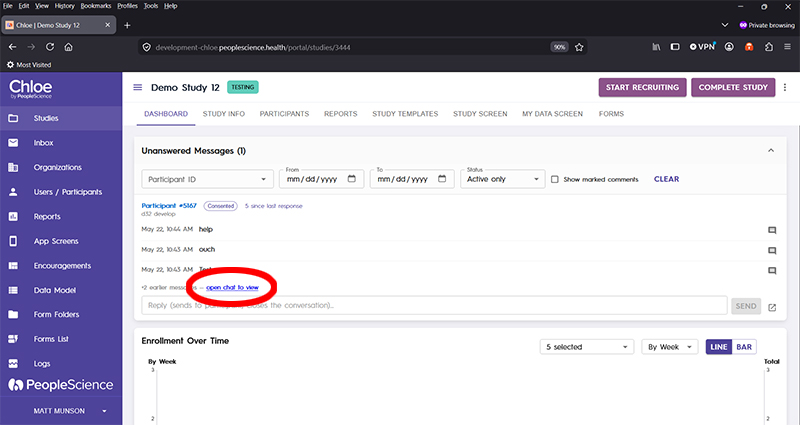
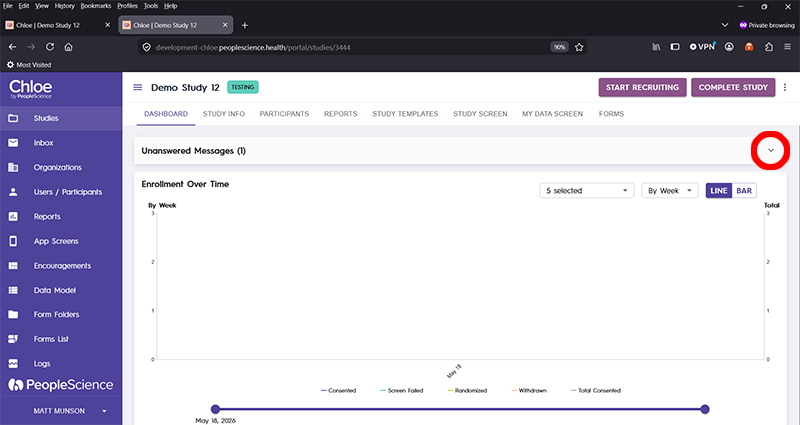
Select the Dashboard tab. At the top of the Dashboard tab, you will see a section named Unanswered Messages.
Click the arrow on the right hand side to reveal the full contents of the window.
Once expanded, you will see a list of all unanswered messages, grouped by participant.
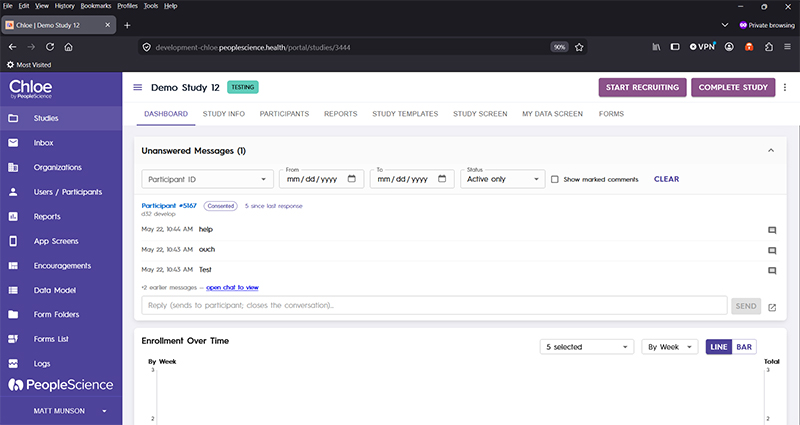
To reply to a message in the Unanswered Messages pane, type into the field below the messages, then press send. The message will be sent to the participant, and the unanswered messages will be removed from this list.
You can filter the display by using the Participant ID drop down, or specifying date ranges for messages. You can also select what type of participants you want displayed by using the "status" drop down, which lets you select between All, Active Only, and Archived Only.
All: All participants in the study.
Active Only: Participants that are active in the study (Consented or Randomized)
Archived Only: Participants that are no longer active in the study (Screen Failed, Withdrawn, Completed)
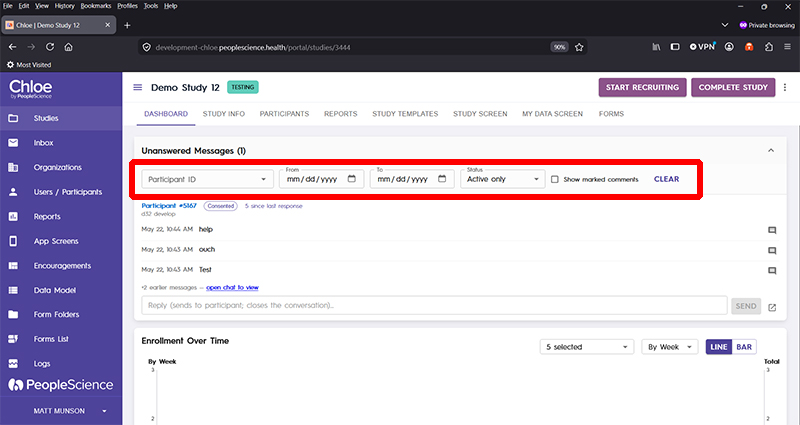
The CLEAR button will remove all filters you have applied to the list.
Pro-Tip: Once a message has been replied to, it will no longer appear in this list. To review or access previous messages, navigate to the participant profile and select the Messages option from the right hand side panel.
Clicking on the open chat to view link will take you directly to the Message thread screen at the participant profile.