Chloe Mobile App - Participant Profile
Last updated: August 14, 2026
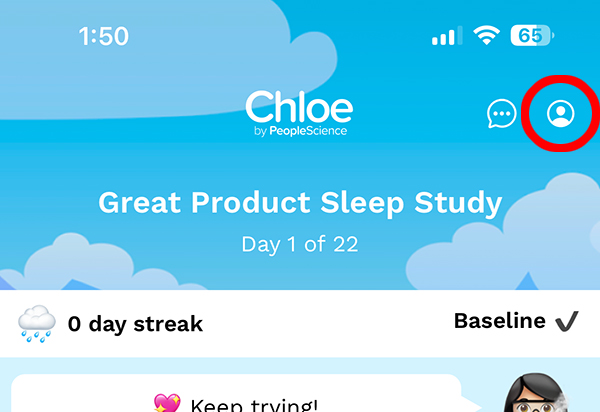
The Participant Profile screen is where participants can access and modify their app settings, personal information and preferences, or log out. It is accessed by clicking the small head and shoulders icon in the upper right hand corner of any of the primary pages in the Chloe Mobile App, including Today, Join, My Data and My Studies.
Each of the sections/fields on this page can be modified by clicking the > icon on the right hand side of each pane. This will open a separate screen. Links to screen grabs of those screens are included with each section description below.
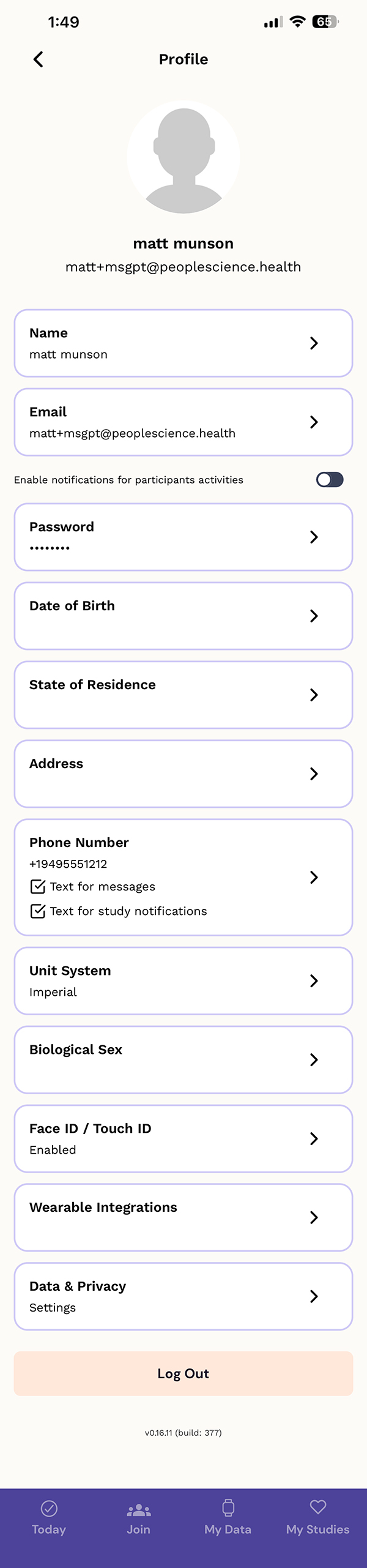
At the top of the screen, we have a default participant profile photo. This can be modified by clicking on it, allowing a participant to take a photo or select one from their photo library. This photo is visible to study staff in the Chloe Admin Portal. Beneath that is the participants first and last name, followed by the email address they used to create their account under.
Name - Pt can edit their first and last name at any time. No field for middle name. 📄 Chloe Mobile App - Profile - Name
Email - Pt can edit their email address at any time. If edited, it will initiate an email confirmation workflow to ensure the new email address is valid and accessible to the pt. 📄 Chloe Mobile App - Profile - Email
Enable Notifications For Participant Activities - Allows a participant to enable or disable push notifications from the Chloe platform. This is the only place where a pt can disable them. If they disable notifications in their phones system without disabling them here, Chloe will issue a persistent error message. Slide to the right to enable, to the left to disable notifications.
Password - Pt can update their password here. 📄 Chloe Mobile App - Profile - Password
Date of Birth - Pt can set or modify their date of birth. 📄 Chloe Mobile App - Profile - Date of Birth
State of Residence - Pt can select from a drop down menu from all 50 states in the USA. 📄 Chloe Mobile App - Profile - State of Residence
Address - Pt can set or modify their address here. Includes fields for; Street Address, Apartment/Suite/Unit, City, State, Zip Code. 📄 Chloe Mobile App - Profile - Address
Phone Number - Pt can set a phone number here, with prefixes for all available countries. Also allows a user to opt in our out of Chloe text messages and study notifications. 📄 Chloe Mobile App - Profile - Phone Number
Unit System - Pt can choose between Imperial or Metric. 📄 Chloe Mobile App - Profile - Unit System
Biological Sex - Pt can choose between Female, Male, or Intersex. 📄 Chloe Mobile App - Profile - Biological Sex
Face ID / Touch ID Enable - Slide slider to the right to enable Face ID / Touch ID to enable, to the left to disable. This is a great way to reduce friction for participants as it makes the login process a lot quicker with no keystrokes. 📄 Chloe Mobile App - Profile - Face ID / Touch ID
Wearable Integrations - Allows users to connect to wearable devices. This screen functions the same as the My Data screen that can be accessed elsewhere in the Chloe Mobile App. 📄 Chloe Mobile App - Profile - Wearable Integrations
Data & Privacy Settings - Provides a link to the PeopleScience privacy policy, and more importantly a "Delete My Account" button. 📄 Chloe Mobile App - Profile - Data & Privacy
Log Out - Pt can log out of the mobile app from here.