Scoring Forms / Assign Action
Last updated: July 8, 2025
For a form to be scorable, all of the saved data types (e.g. key pairs) must be integer or numeric values.
Measures such as the Gastrointestinal Severity Rating Scale (GSRS) may require scoring to be used to qualify or disqualify participants. The ‘Assign’ action can be used to automatically score the form.
How to Score a Form
Add a new schema entity.
In your form add a question form element. Select number for the element type.
Scroll down to Schema Field, scroll within the submenu and create a new schema entity (e.g. gsrs_score).
Make the data type an integer and click submit
Then delete the form element as it is no longer needed and the Schema Field has been created.
* Future updates will make it easier to create new Schema Fields from the Actions menu.
Click the final question of your measure. Scrolling the menu on the right side to find Actions.
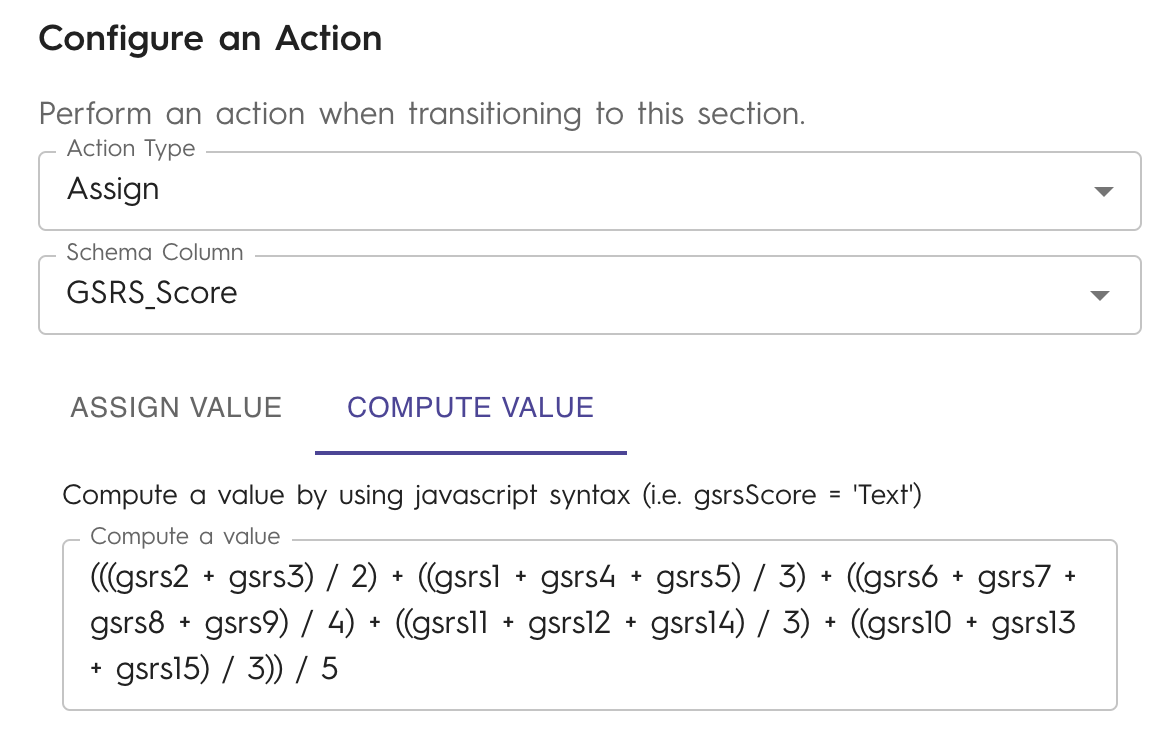
Click Add Action, and assign your variable (e.g. gsrs_score).
Click the ‘Compute Value’ tab and add your Java Script formula. The example image sums the key-pair question values from the GSRS and saves the total as the GSRS_score. Note that it is using the Schema Field name of those items (e.g. gsrs1)
After submitting the final question, the action will trigger and save the score.
To test that the score has been saved you can create a new section at the end of your survey. Add a question with a number element type and use the scoring Schema Field name (e.g. gsrs_score) to the Scheme Field. Click Preview in the top right corner of the form builder, and answer the questions to see your score is calculating.