Qualification - Form Element
Last updated: July 8, 2026
An essential part of any study workflow, this element is used to guide a participants path either into the study, or to present them with alternative opportunities. The Qualification Element is used as an end state in the study Qualification Questionnaire.
Pro-Tip: Typically, your qualification questionnaire will have two sections, each with a Qualification Form Element within. One of those Qualifications will be the path for the Qualified participant, the other will be for those that do not qualify.
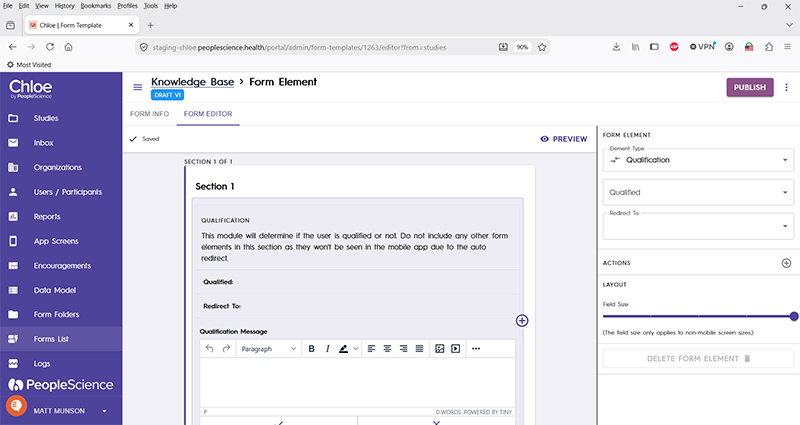
Pro-Tip: Use the Qualification Message Rich Text/Images editor to provide your participant with some congratulatory text should they qualify. Conversely, point them to other study opportunities with links if they do not.
Qualified | Yes or No. Set as the endpoint for a workflow. If your participants responses, when scored, lead to them being qualified for the study, set to Yes. Otherwise, set to No. | Select from the drop down list which Study Template you wish to apply upon execution of this Form Element. This drop down will be populated with all of the Study Templates that you have built out for your currently active study. |
Redirect to | Drop down with one option, "Qualification Complete Screen". | |
Actions | ||
Layout | ||
Delete form element |
For an introduction to Form Elements, a complete list of them and articles on how to use them, please visit this article: 📄 Form Elements
For an overview of Schema Fields and how form results look exported click here.