Helping Participants Change Their Study Notification Time
Last updated: June 16, 2026
Chloe sends each participant a daily notification reminding them to complete their study activities. The notification time controls when that reminder arrives. Participants can change it themselves at any time from within the Chloe mobile app — for example, to a time of day when they are more likely to have a few free minutes.
If a participant asks how to change when their daily reminder arrives, share the step-by-step instructions below. You can copy them into a chat message, email, or hand them out directly — they are written in plain language for participants to follow on their own device.
Note: This setting only changes when the reminder is sent. It does not change a participant's study schedule, activities, or due dates.
Instructions to share with participants
Here is how to change your notification time in the Chloe app. The whole process takes just a few taps:
1. Open My Studies and view your study.
2. Open the study settings (gear icon).
3. Tap the Notification Time field.
4. Pick a new time and tap Confirm.
5. Tap Submit to save.
Step 1 — Open your study from My Studies.
From the Chloe mobile app, tap My Studies in the navigation bar at the bottom of the screen.
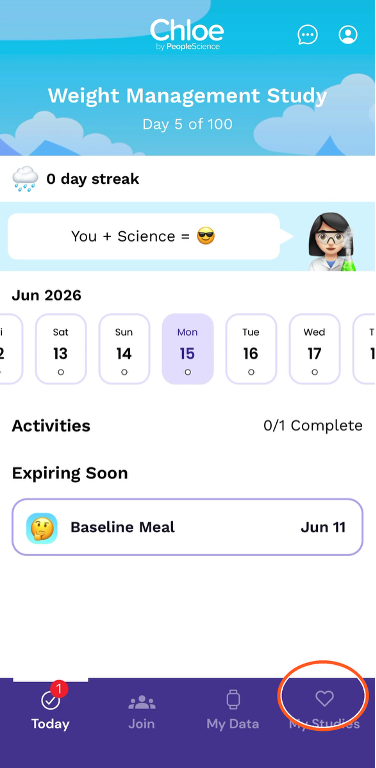
This opens the My Results page for your study.
Step 2 — Open the study settings.
On the My Results page, tap the settings (gear) icon in the top-right corner of the study card.
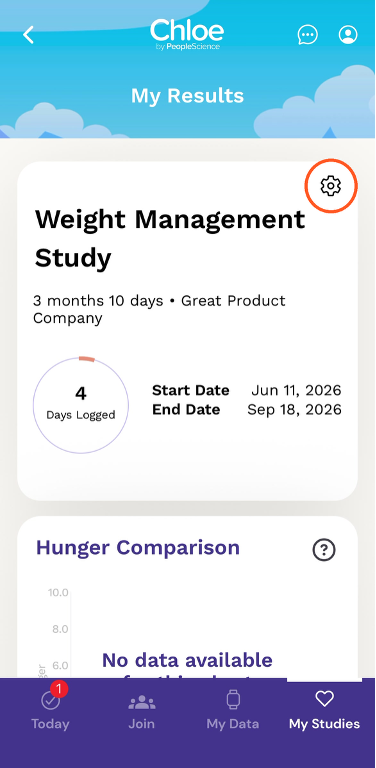
This opens the Study Information page, which shows your study Name, Start Date, Duration, and Notification Time.
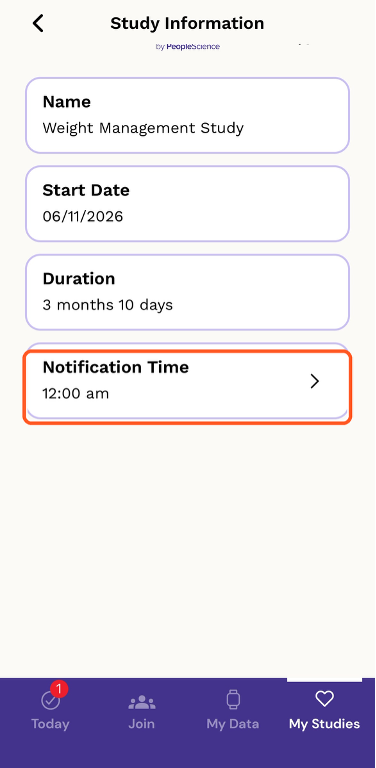
Step 3 — Open the Notification Time field.
On the Study Information page, tap the Notification Time field. Your current notification time is shown here — in this example, 12:00 am.
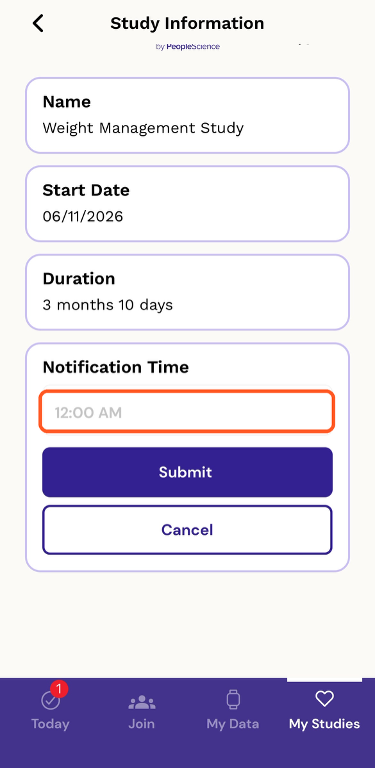
Step 4 — Open the time picker.
The field switches into edit mode and a Submit and Cancel button appear. Tap the time field to open the time picker.
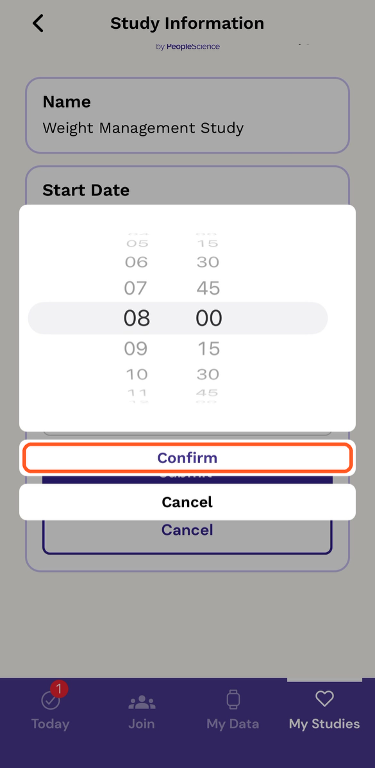
Step 5 — Choose your new time and confirm.
Scroll the hour and minute wheels to the time you want to receive your daily notification, then tap Confirm.
Step 6 — Save your new time.
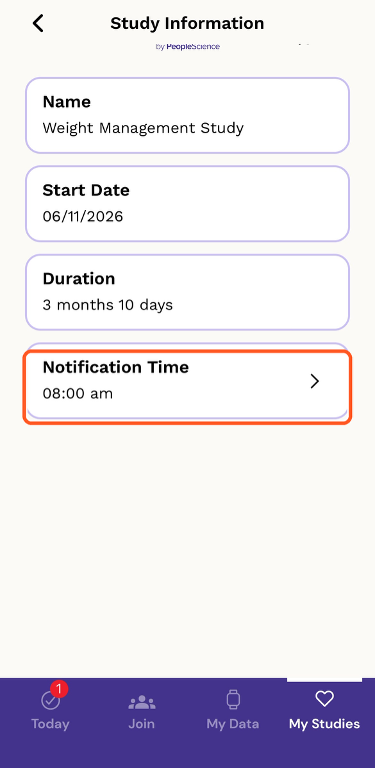
After confirming, the field displays your new selection. Tap Submit to save the change. Your Notification Time is now updated — in this example, it has changed from 12:00 am to 08:00 am.
Questions Participants May Ask
Use these answers when a participant has follow-up questions about their notification time.
“When will the new notification time take effect?”
As soon as the participant taps Submit, the new time is saved. Their next daily reminder will arrive at the time they selected.
“Can I change my notification time more than once?”
Yes. Participants can update their notification time as often as they like — they simply return to the Study Information page and repeat the steps above.
“What time zone is the notification based on?”
The notification is sent based on the clock on the participant’s mobile device, so it follows their device’s current time zone.