Chloe Admin Portal - Navigation Pane
Last updated: July 22, 2026
On the left hand side of the Chloe Admin Portal is the Navigation Pane. This navy blue panel lists items that grant the user access to a variety of pages and information which will be displayed in the primary pane to the right of the Navigation Pane, in the Main Window.
Every account type in Chloe has access to the Studies folder found in the Navigation Pane. When selected, a list of all studies that you have access to will be displayed in the main window.
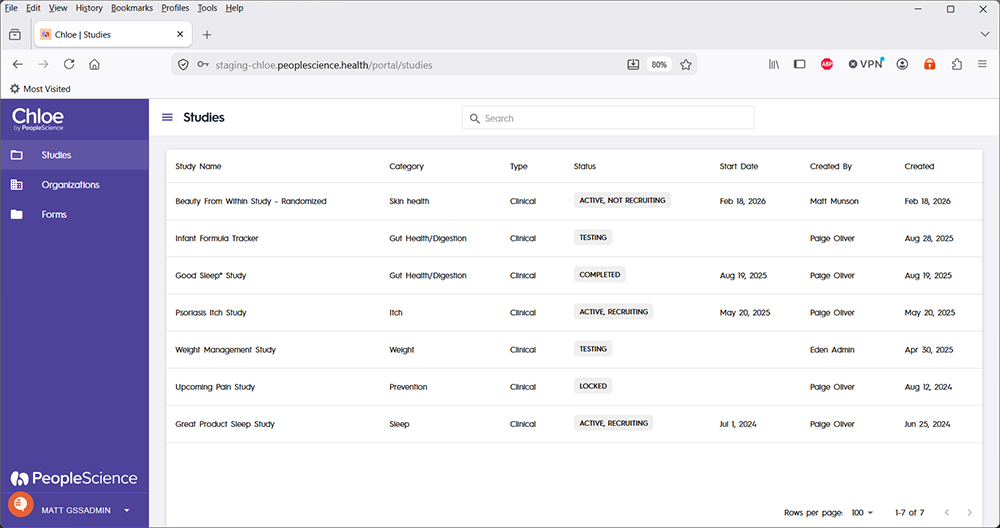
Once a study is selected from the Studies list, you will be taken to the Dashboard for that study, and will have access to the other screens for that study. For details of the Study Dashboard, please refer to this knowledge base article: 📄 Chloe Admin Portal - Dashboard
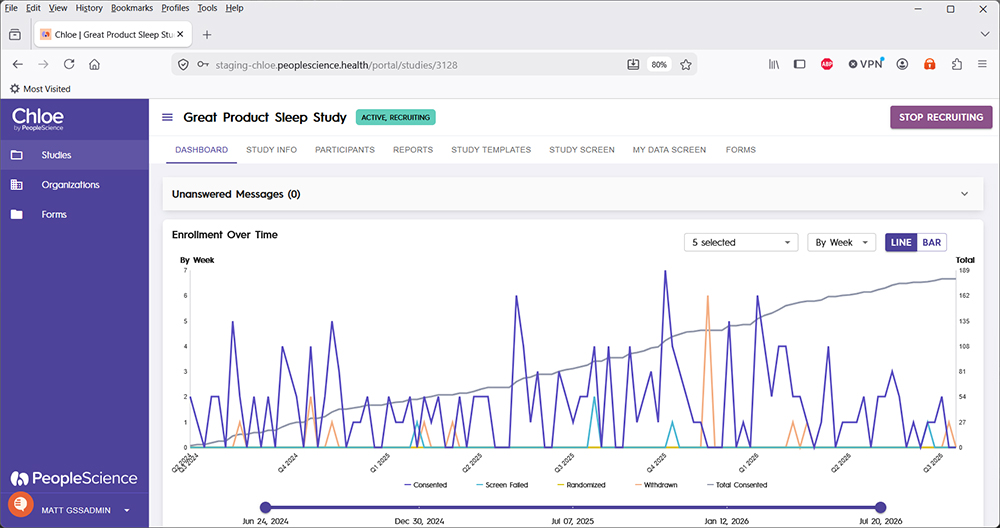
Depending on your account type, you may also have access to the Organizations and Forms menu items in the Navigation Pane. The Organizations screen will show every Chloe Organization that you are a member of. Click on an Organization to see Info, Studies and Forms associated with the selected Org.

For detailed information on Organizations, please refer to this article: 📄 Chloe Admin Portal - Organizations
The Forms folder will show you folders for each study that you have access to, and within each folder you will find a list of all forms built for that study. This is a convenient way to access study forms across multiple studies in one location. If you'd like to learn more about Forms and how to build them, please refer to this article in the knowledge base: 📄 Intro to Form Building

For a complete list of screens available on the Chloe Admin Portal, please refer to this knowledge base article: 📄 Chloe Admin Portal - Overview & Introduction