Document Upload For An Individual Participant
Last updated: May 27, 2026
Chloe has the ability to add PDF documents to a participant profile.
Documents can be viewed by Study Staff through the Chloe Admin Portal, or by participants in the Chloe Mobile App.
Documents can be added one at a time.
Chloe can store multiple documents per participant.
This article explains the process of adding a document to a participant profile, and viewing it.
Adding a New Document for a Participant
Navigate to the Participant Profile that you would like to add a document to.
Click on the 0 Documents Uploaded link, located on the right hand side pane of the Participant Profile.
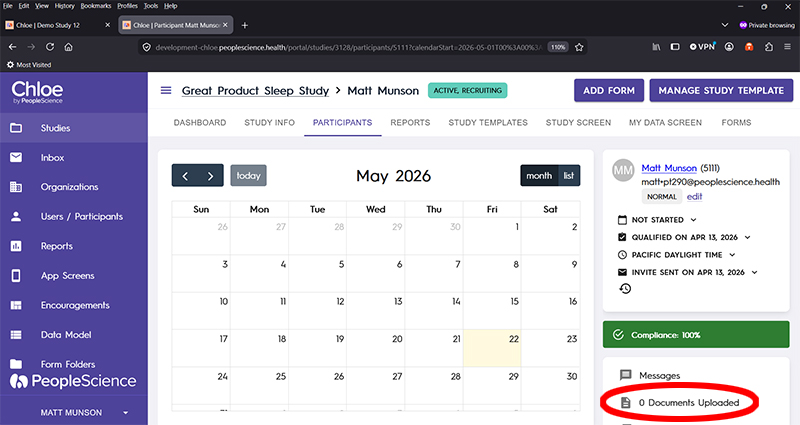
Pro-Tip: If you've already added a document to this participants profile, that link will be labeled with the number of documents already uploaded.
This will open the Documents pane.
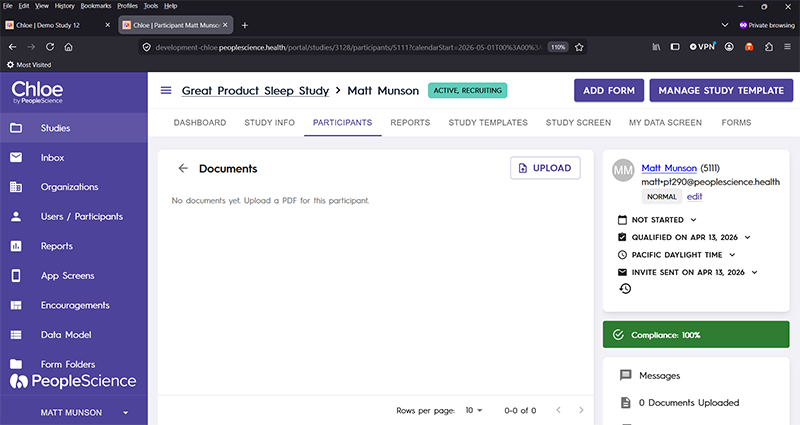
Previously uploaded documents will be visible here.
Press the UPLOAD button to add a document to this participant's profile.
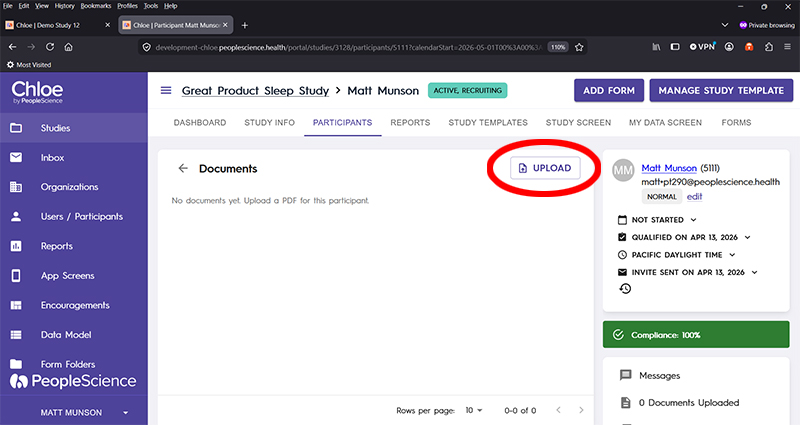
Use your file browser to locate the file you wish to upload.
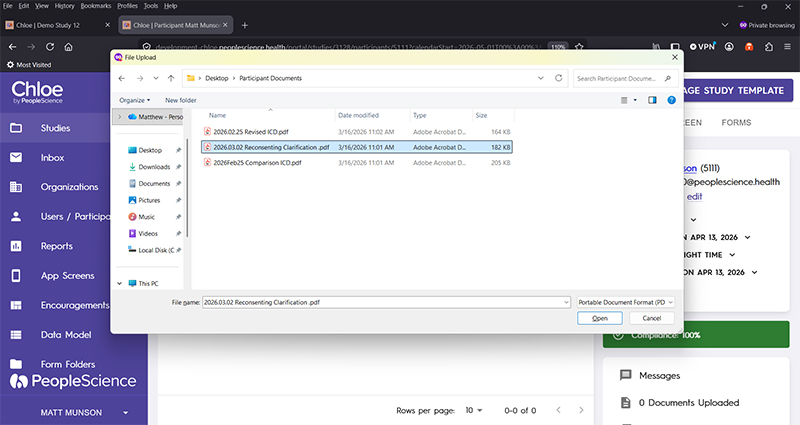
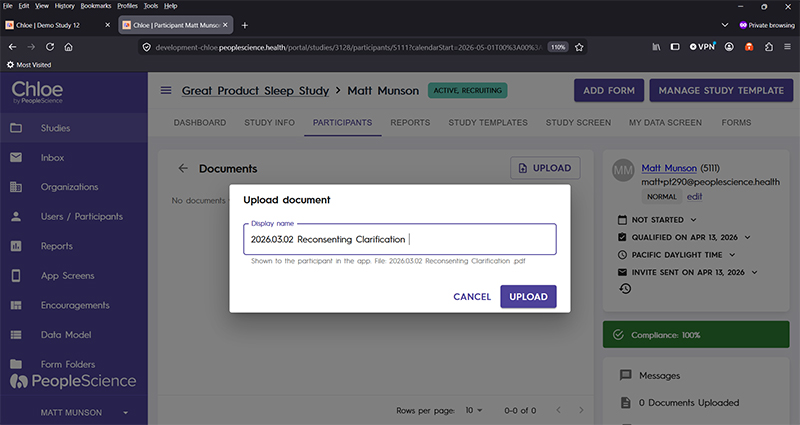
Chloe will give you the option to change the display name of the document prior to uploading.
Press UPLOAD when you are finished with any changes.
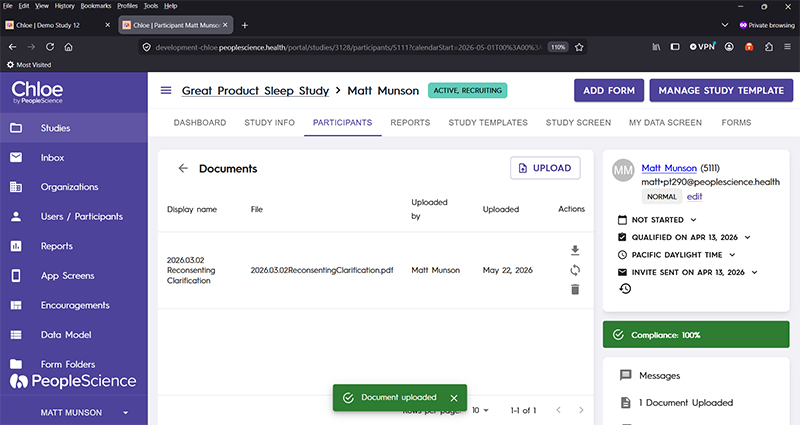
Once the document has been successfully uploaded, it will be visible in the Documents pane.
Updating a Document for a Participant
Once the document is uploaded, study staff can download, update or delete the document from the participant profile by using the buttons on the right hand side of the document line item.

Viewing a Document as a Participant
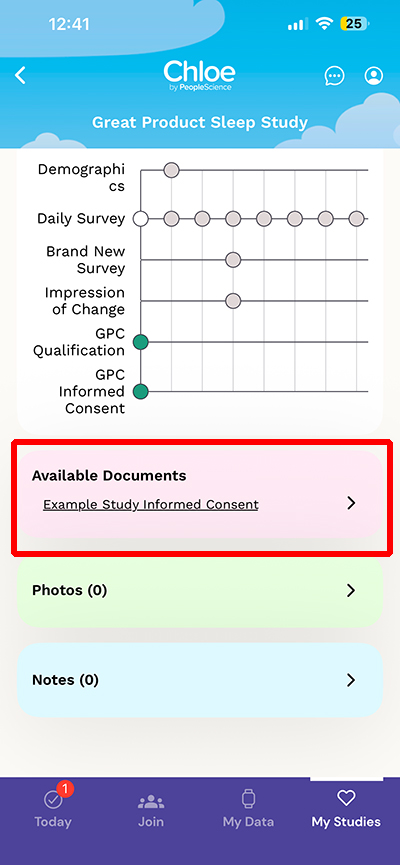
The uploaded pdf is now available for viewing or download by the participant in the Chloe Mobile App. It can be found by navigating to the My Studies page, within the study card, under the Available Documents section.