Notebook Field - Form Element
Last updated: July 8, 2026
This element type let users create and save notes. These notes differ from free response questions as they can be referenced by the study staff in a dedicated pane on the participant profile, while participants can find them in the "My Studies" page, within the current study.
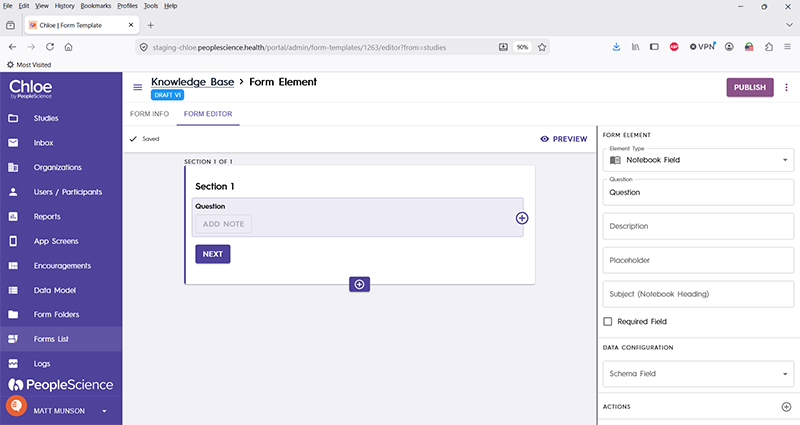
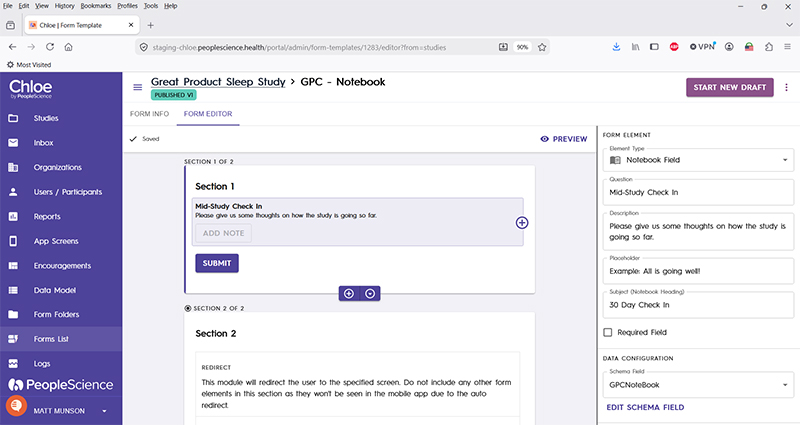
Below is a sample Form build that uses a Notebook Form Element, along with renderings of the form for a participant, and the resulting views of the note in the admin portal and the mobile app.
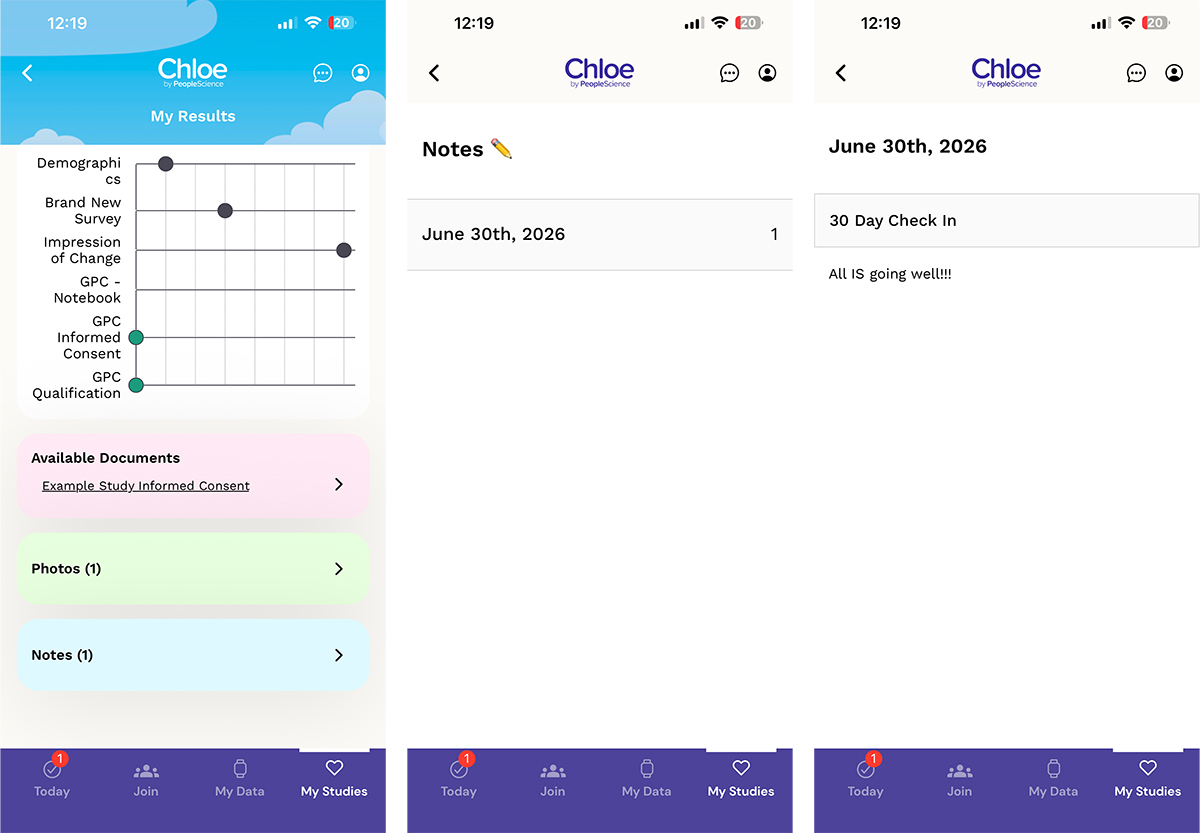
These screen grabs from the Chloe Mobile App illustrate how this form will look to the participant.

This is how the notes can be viewed by the Participant in the "My Studies" section:
Observe the highlighted pane on the participant profile, indicating that a note has been added:
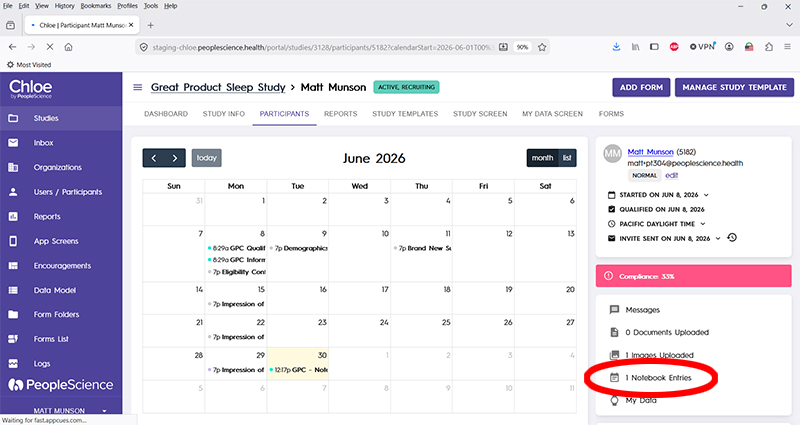
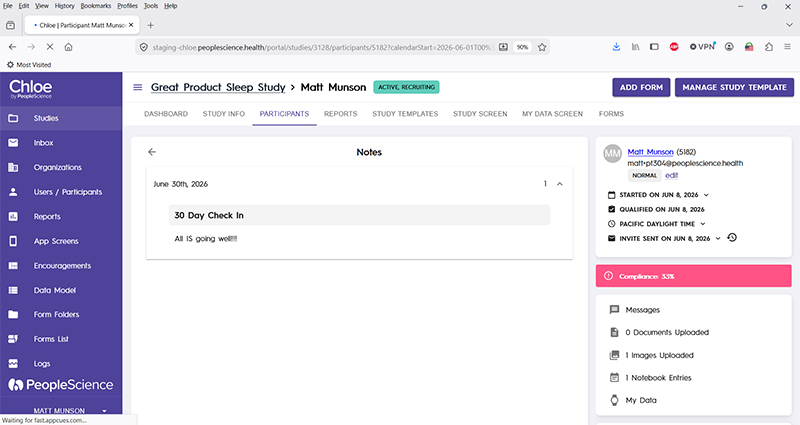
Clicking on the "1 Notebook Entries" pane opens up a list in the main window on the participant profile:
Question | The primary text displayed for this element. Bold by default. |
Description | Secondary text for this element type. Displayed beneath the "Question" text. Not bold. |
Placeholder | Optional text that will be displayed in the note field. Typically used to offer guidance or suggestions to the participant on how to properly use the note. |
Subject (Notebook Heading) | Optional text that will be preserved when the note is saved. Can aid in organization. |
Required Field | Check this to require participant input. Enabling this option will forbid the user from advancing to the next section until a response is made in this Form Element. |
Schema Field | |
Actions | |
Layout | |
Delete form element |
For an introduction to Form Elements, a complete list of them and articles on how to use them, please visit this article: 📄 Form Elements