Participant Bulk Action Options
Last updated: July 8, 2026
This article describes all of the bulk operations that can be performed on participant accounts in the Chloe Admin Portal.
Bulk actions allow you to perform a single action on multiple participants at the same time, thereby saving you the time of having to perform the same action on multiple participants individually. Some bulk actions have restrictions on them, and can only be performed on participants who satisfy certain criteria.
Begin by navigating to the Participants tab for your study.
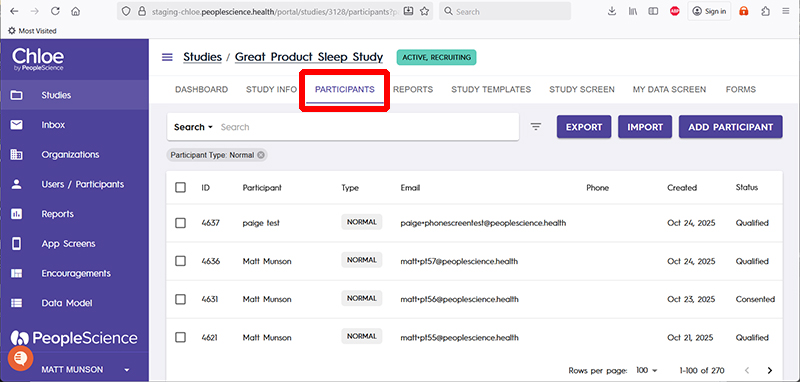
Use the check boxes in the first column of the list to select the participants you wish to perform an action on. Once checked, the Bulk Action pop up menu will appear at the bottom of the screen.
Pro-Tip: To select all of the participants in your list, click the check box on the column name row, to the left of the ID column.
Pro-Pro-Tip: Filter your participant list prior to doing any bulk actions, thereby allowing you to use the Select All feature. See this article for more information on filtering. 📄 Participant List Filtering
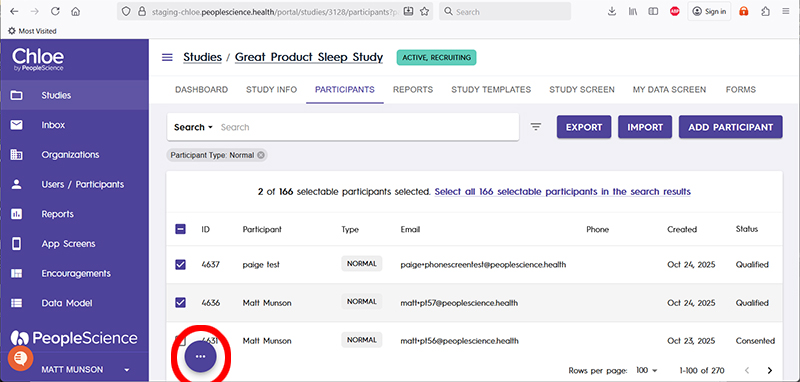
Hover your mouse over the Bulk Action pop up menu to reveal the list of possible actions.
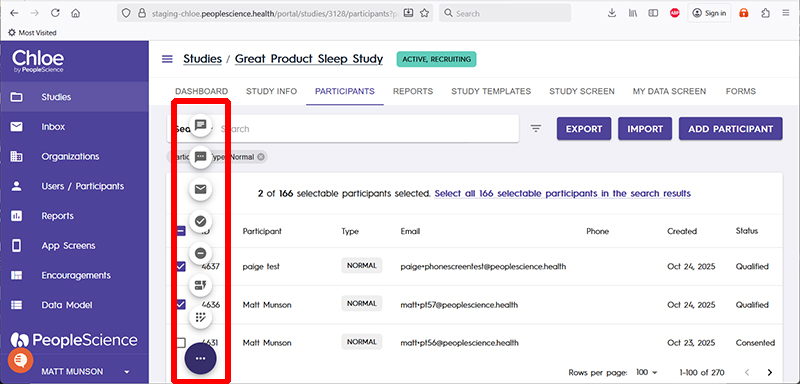
From the top down, the list of actions is as follows:
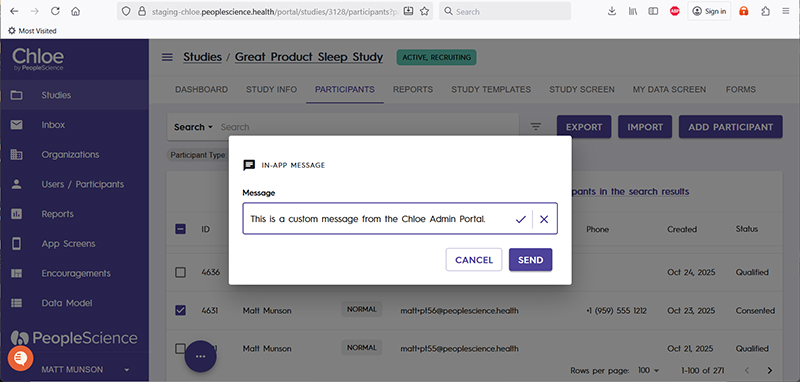
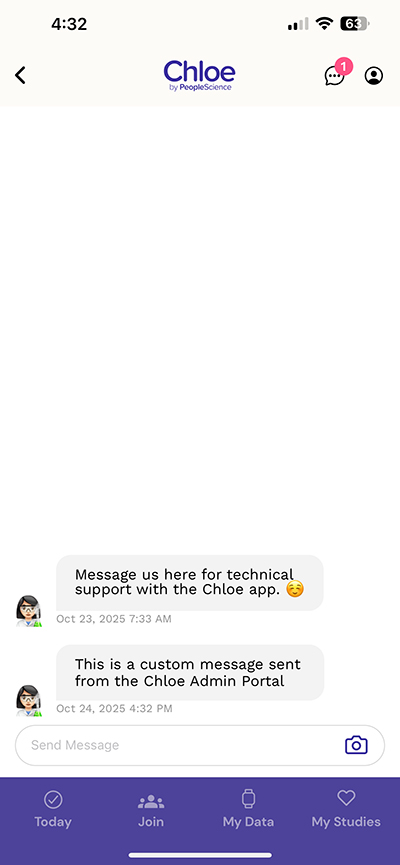
In-App Message - Sends the selected participants a message of your crafting. Once selected, a dialog box opens up where you can enter the text you wish sent to your participants. This message will appear in the thread of the in app chat.
This is how the message displays in the mobile app:
Text Invite - Sends a text message to the selected participants, typically to ask them to join the study. This only works for participants accounts that include a valid phone number. The message can be customized to suit the needs of your study.

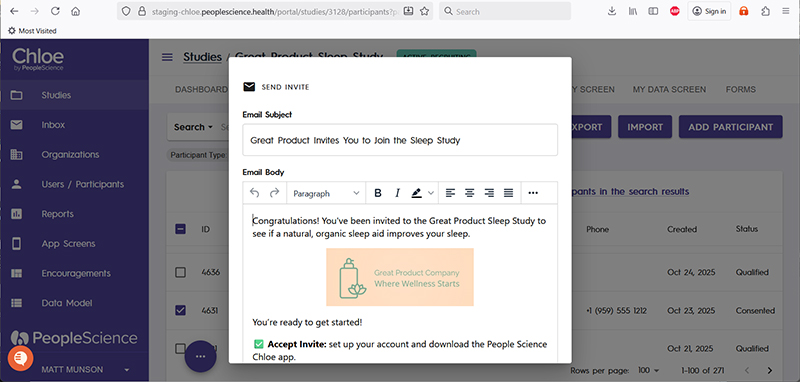
Email Invite - Sends an email to all of the selected participants. The content of the email can be customized, but uses as its base the email that has been configured on the Study Info page, in the Study Email section.
Complete - Changes the Status of all selected participants to Completed. This function only works on participants whose status is Consented or Randomized.
Withdraw - Changes the Status of all selected participants to Withdrawn. This function only works on participants whose status is Consented or Randomized.
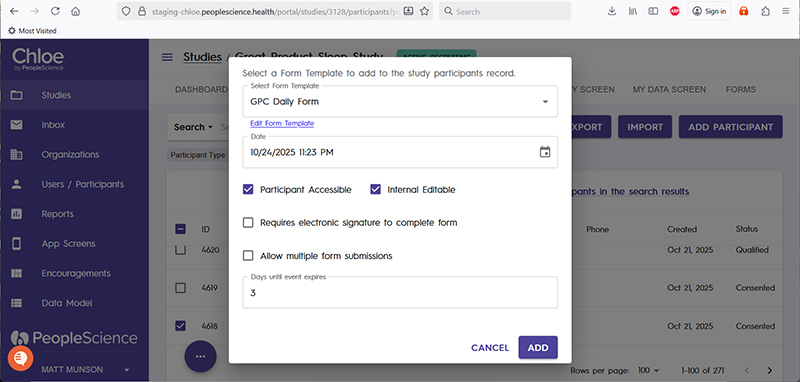
Add Form - Allows study staff to assign a form from the study's form list to the selected participants. Select the target form from the drop down list on the dialog box then click Add. Participant status must be Consented or Randomized in order to have a form added.
Use the Date field to specify the date that the form will show up on the participants forms list. You may wish to make a form only available to study staff, for example if your target form is a progress note.
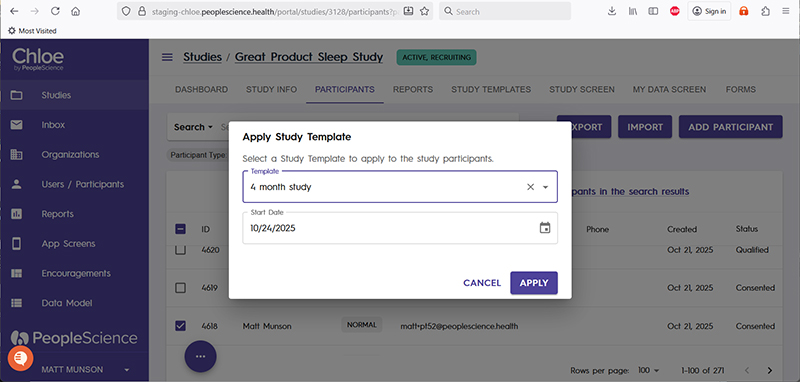
Add Study Template - Allows you to apply a new study template from your study to the selected participants. This function only works on participants whose status is Consented or Randomized.
Select the desired study template from the drop down list, and adjust the start date for the template as necessary.