File Upload - Form Element
Last updated: July 8, 2026
Allows a user or study staff to upload a file from their mobile device or desktop/laptop computer.
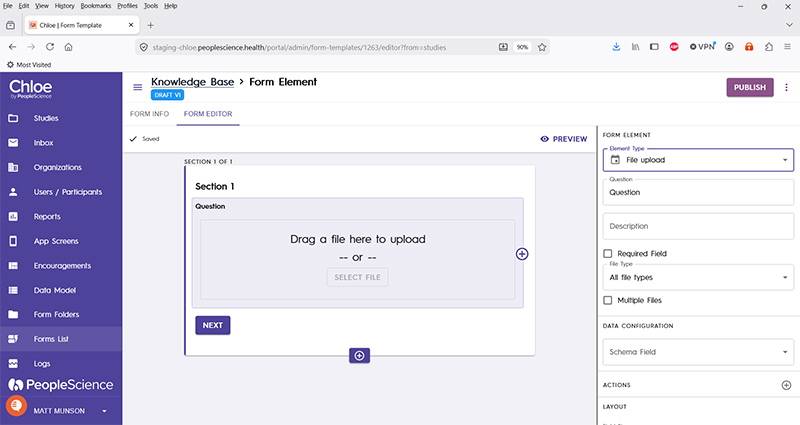
When a participant uploads an image using the File Upload form element, the image can be accessed by the study staff both from the form itself, and also from the Images Uploaded pane on the participant profile. This function is only available for images, eg JPEG, PNG, GIF.

Question | The primary text displayed for this element. Bold by default. | |
Description | Secondary text for this element type. Displayed beneath the "Question" text. Not bold. | |
Required Field | Check this to require participant input. The section will not allow the user to advance until they input something into this element's field. | |
File type | Use this drop down to limit or allow what types of files the user can upload. Options include: All file types Image files (JPEG, PNG, GIF) Video files (MP4, M4V, MOV) PDF only MS Word only Powerpoint, Word, or PDF | |
Multiple files | Allows the user to select more than one file for the upload operation. | |
Schema Field | ||
Actions | ||
Layout | ||
Delete form element |
For an introduction to Form Elements, a complete list of them and articles on how to use them, please visit this article: 📄 Form Elements