Slider - Form Element
Last updated: June 29, 2026
The Slider Form Element is used to capture from a participant a single numeric value from within a range (e.g. X out of 10).
You must use button transitions on Slider form elements. Auto Transition (transient) functionality is disabled on a section when using a Slider.
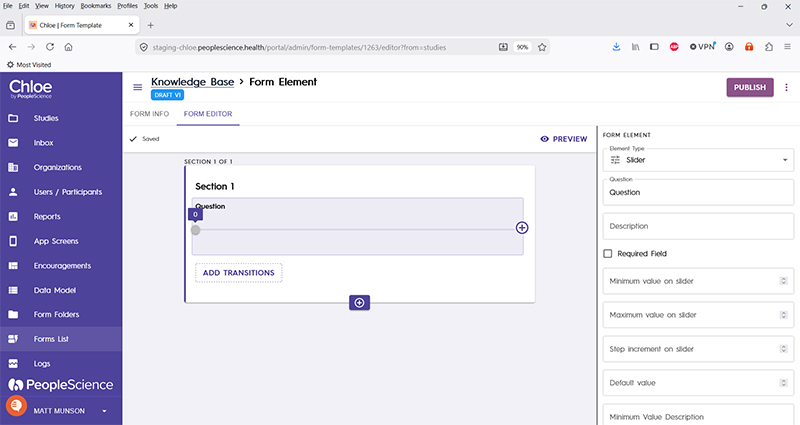
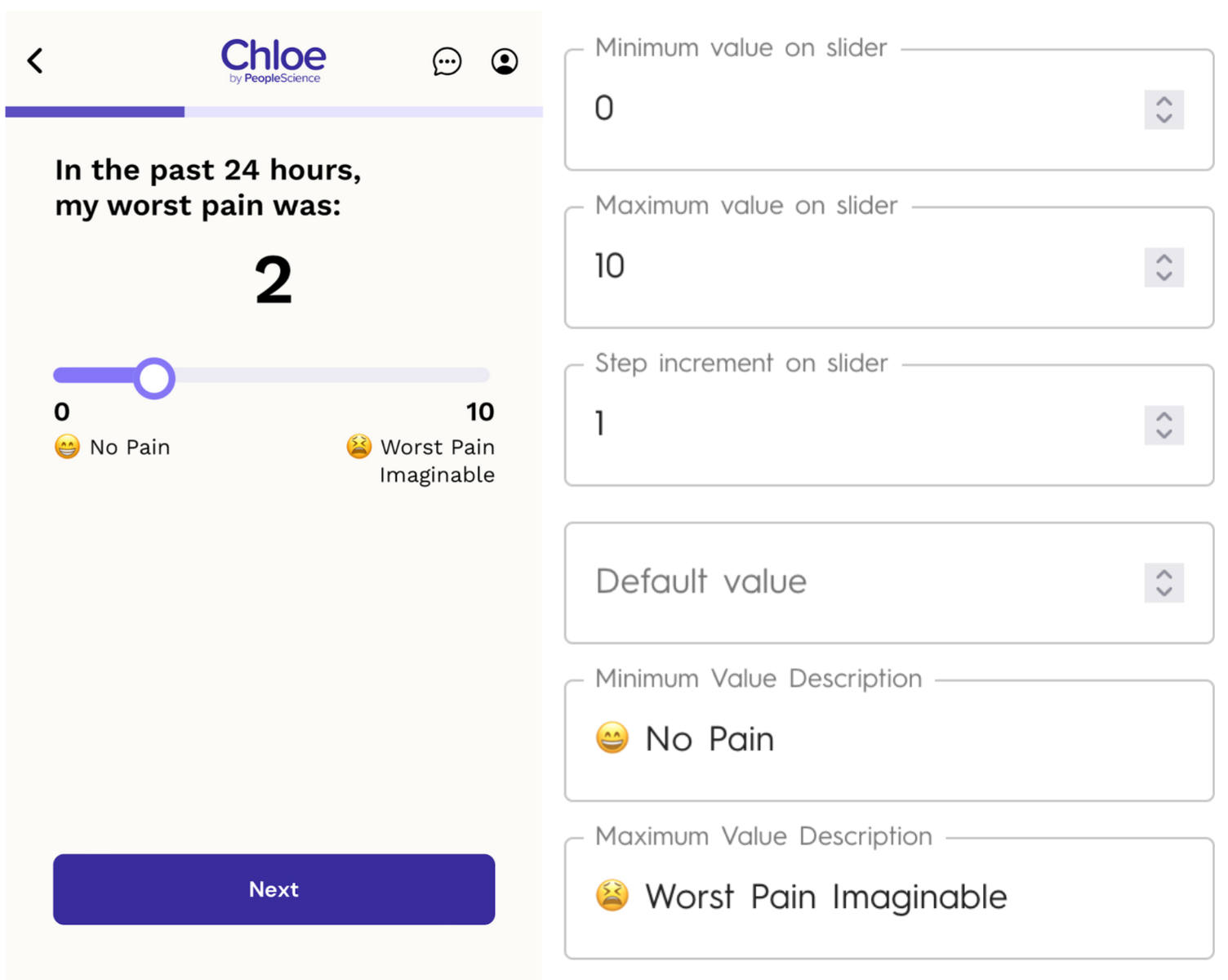
A Slider allows for configurable minimum and maximum values. You may also customize the increment on the slider. Descriptions for the Slider can include emoji that will be visible in the Chloe app.
Question | The primary text displayed for this element. Bold by default. |
Description | Secondary text for this element type. Displayed beneath the "Question" text. Not bold. |
Required Field | Check this to require participant input. The section will not allow the user to advance until they input something into this element's field. |
Minimum value on slider | Value displayed on screen on the left hand side of the slider. The is the bottom of the numeric range you wish to represent. |
Maximum value on slider | Value displayed on screen on the right hand side of the slider. The top of the numeric range you wish to represent. |
Step increment on slider | Allows you to specify the value the slider increases with each movement. |
Default value | When first presented to the participant, the slider will position itself at this value on the scale |
Minimum value description | Text displayed on screen on the left hand side of the slider. Can include emoji. |
Maximum value description | Text displayed on screen on the right hand side of the slider. Can include emoji. |
Show marks on slider | Adds visual marks to the slider to indicate increments. |
Orientation | Choose between vertical and horizontal. |
Value label display | |
Schema Field | This option is explained in the following article: |
Actions | This option is explained in the following article: |
Layout | This option is explained in the following article: |
Delete form element | Allows the designer to delete the selected form element. Each section must have at least one form element, so if this option is greyed out, you must create another form element in order to delete the selected one. |
For a complete list of Form Elements and articles on how to use them, please visit this article: 📄 Form Elements