Dropdown - Form Element
Last updated: July 8, 2026
This form element allows the participant to select a single item from a list, presented as a drop down menu.
Good to Know: Configuring a Dropdown is similar to the process used for configuring a Multiple Choice or Checkboxes form element.
Line items are added to the drop down using the "+ Add Option" button, then configuring them using the List/KeyPair/FreeForm options. Most important is to recognize that you can configure the line items to save different values to the database than the text being displayed on screen. You can use numeric values, which are useful in scoring or charting, or use alternative text that might be more meaningful in a report or end of study analysis.
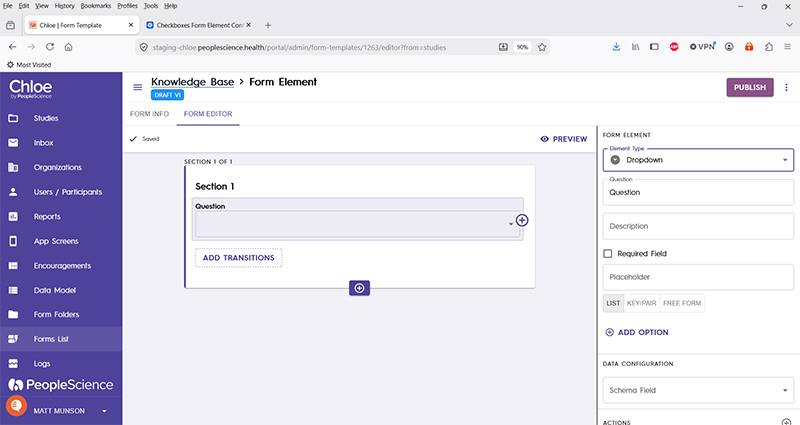
Below is a brief video demonstration of how to configure and use a Dropdown form element.
This is a sample of a fully configured dropdown element.

Question | The primary text displayed for this element. Bold by default. |
Description | Secondary text for this element type. Displayed beneath the "Question" text. Not bold. |
Required Field | Check this to require participant input. The section will not allow the user to advance until they input something into this element's field. |
Placeholder | Text that will be displayed by default in the dropdown field, before it is activated or interacted with by the participant. |
List | Select to display the question line items in list form, showing only the text to be displayed in the questionnaire. |
Keypair | Select to display the question line items in keypair form, displaying the value to be saved as study data along with the text to be displayed. Note: these two values can be different. eg a numeric key mapped to text. |
Free Form | Displays the line items in free text keypair form, with the database value separated from display text by a bar, or the "|" character. |
+Add Option | For manually adding items to the list of response items to be displayed. |
Schema Field | |
Actions | |
Layout | |
Delete form Element |
For an introduction to Form Elements, a complete list of them and articles on how to use them, please visit this article: 📄 Form Elements