How To Delete Participant Activities
Last updated: November 11, 2026
During a study, you may need to remove a scheduled activity (form) from an individual participant's schedule. For example, a form may have been scheduled in error, or a participant may no longer need to complete a recurring form.
This article shows how to delete a one-time activity and a recurring activity (daily, weekly, or monthly) from a participant profile in the Chloe Admin Portal.
Good To Know: Deleting an activity from a participant profile only affects that one participant. It does not change the study template or the schedule for any other participant in the study.
Step 1 - Open The Activity On The Participant Profile
Log into the Chloe Admin Portal, select the target study, then navigate to the Participants tab. Click on the participant's line item to open their participant profile.
Pro-Tip: Make sure your account type/role in Chloe empowers you to perform these functions. Use this link to see the list of Chloe User Roles and their available functions: 📄 User Roles
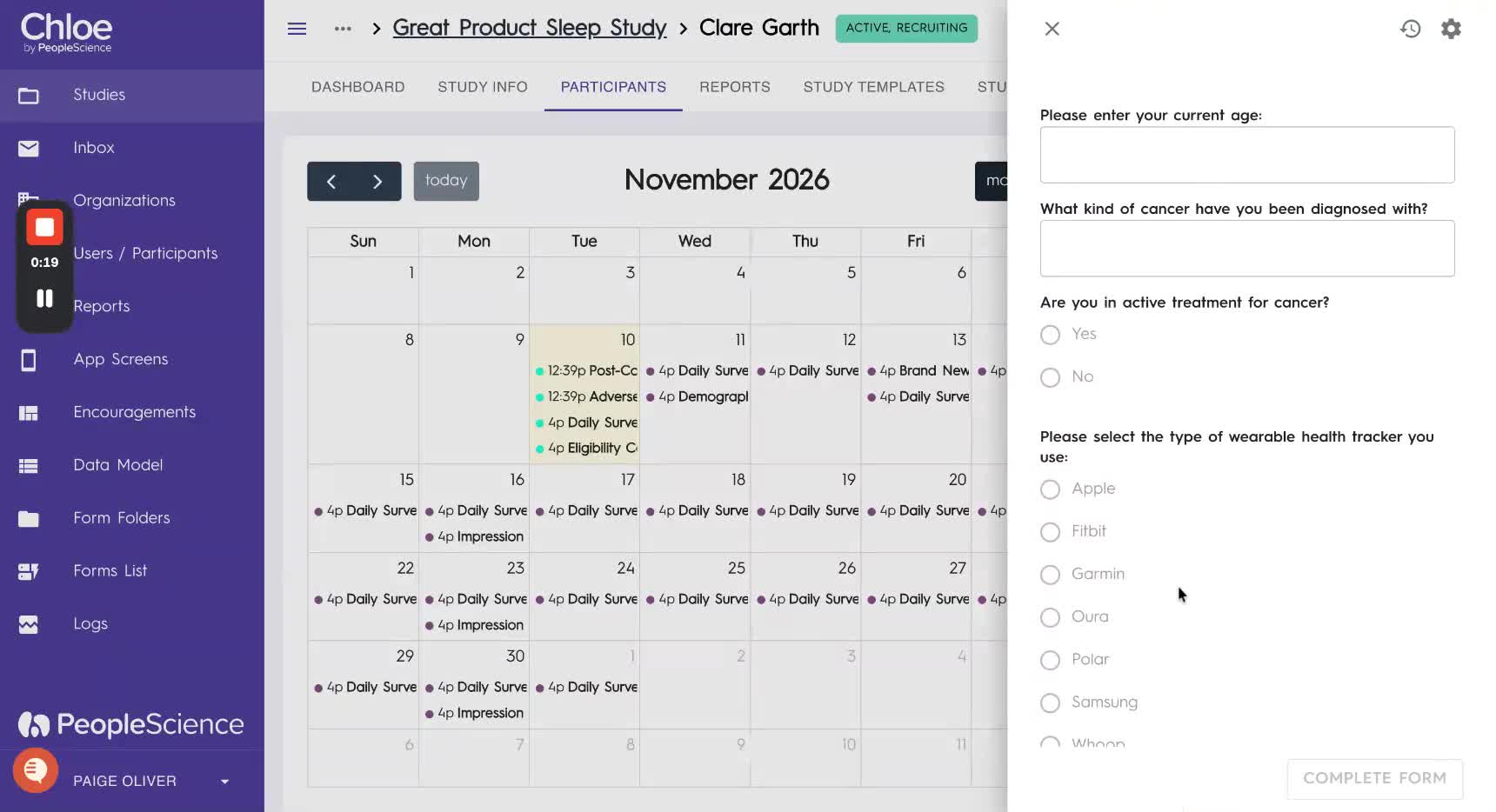
On the participant's calendar, click on the activity you want to delete. The form will open on the right-hand side of the screen.
Click the cog (settings) icon in the upper right-hand corner of the form.
Step 2 - Click Delete
The Update Form dialog box will open with the form settings. Click the Delete button in the lower left-hand corner.
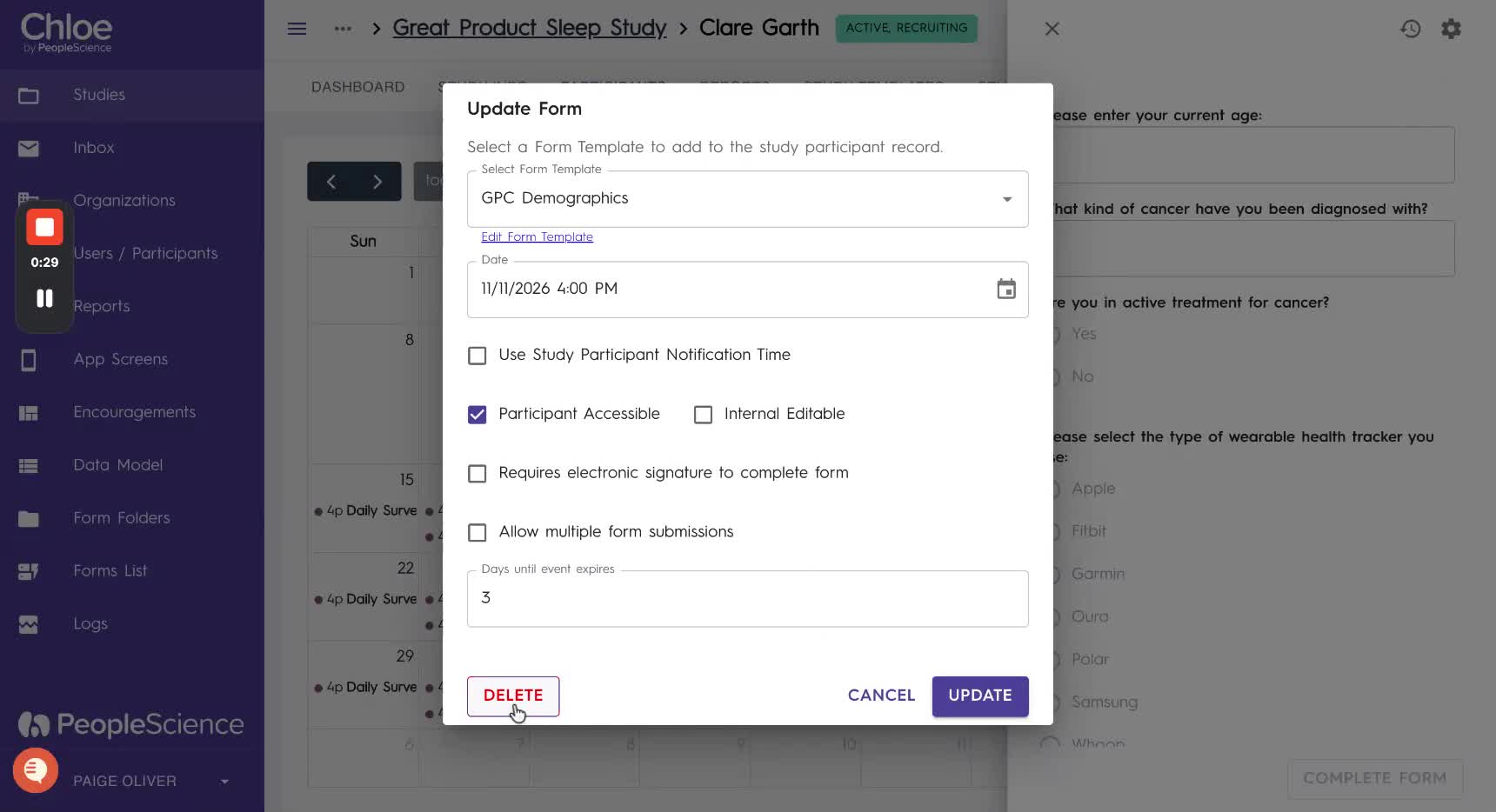
What happens next depends on whether the activity occurs once or repeats.
Deleting A One-Time Activity
If the form only has one instance, Chloe will ask you to confirm that you would like to delete the form.
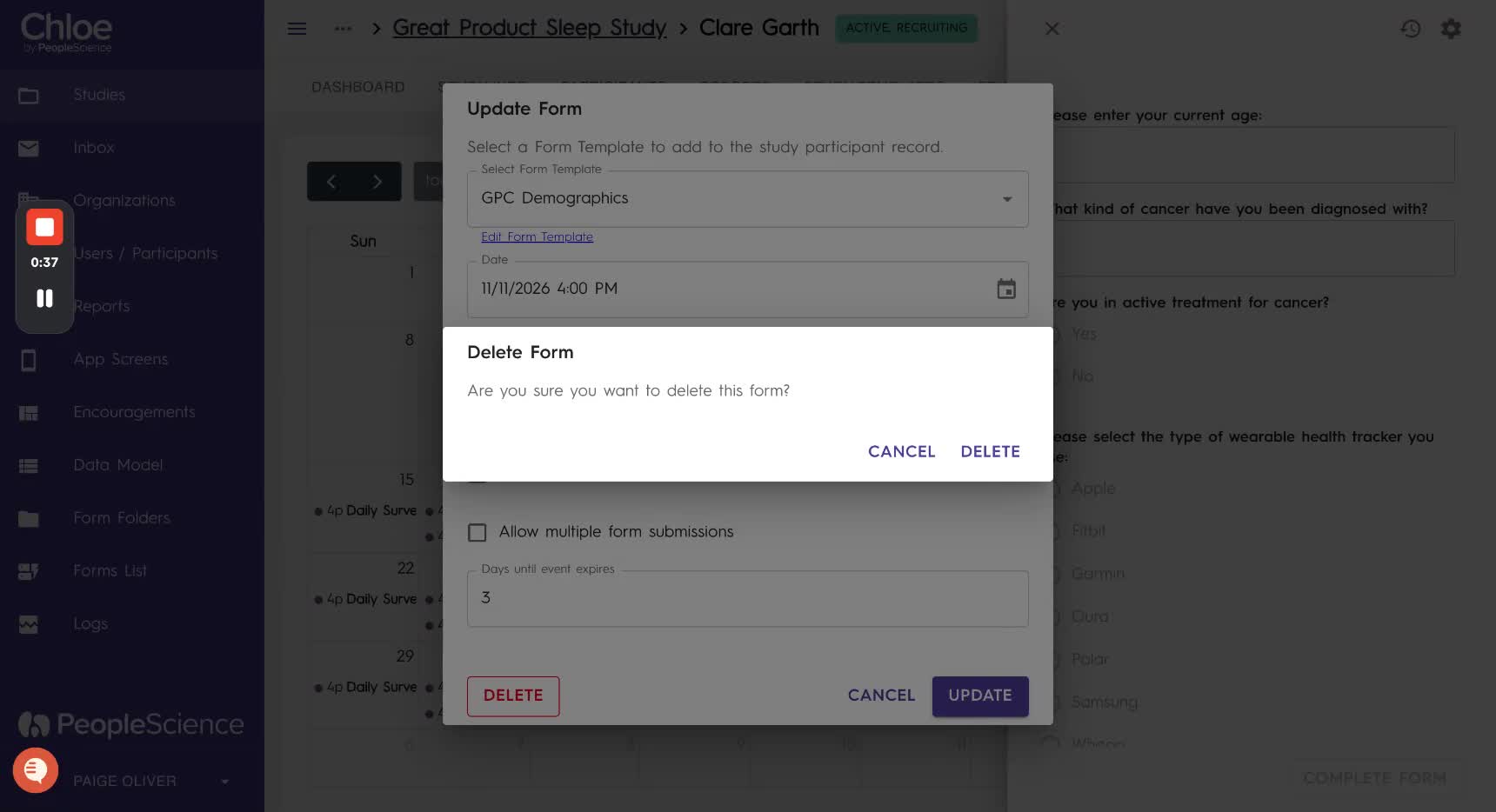
Click Delete to remove the form.
Click Cancel to keep the form.
Once the form is deleted, it is removed from that participant's schedule.
Deleting A Recurring Activity
If the form has multiple occurrences (for example, a daily, weekly, or monthly form), the confirmation will look a little different. Chloe will ask which occurrences you would like to delete.
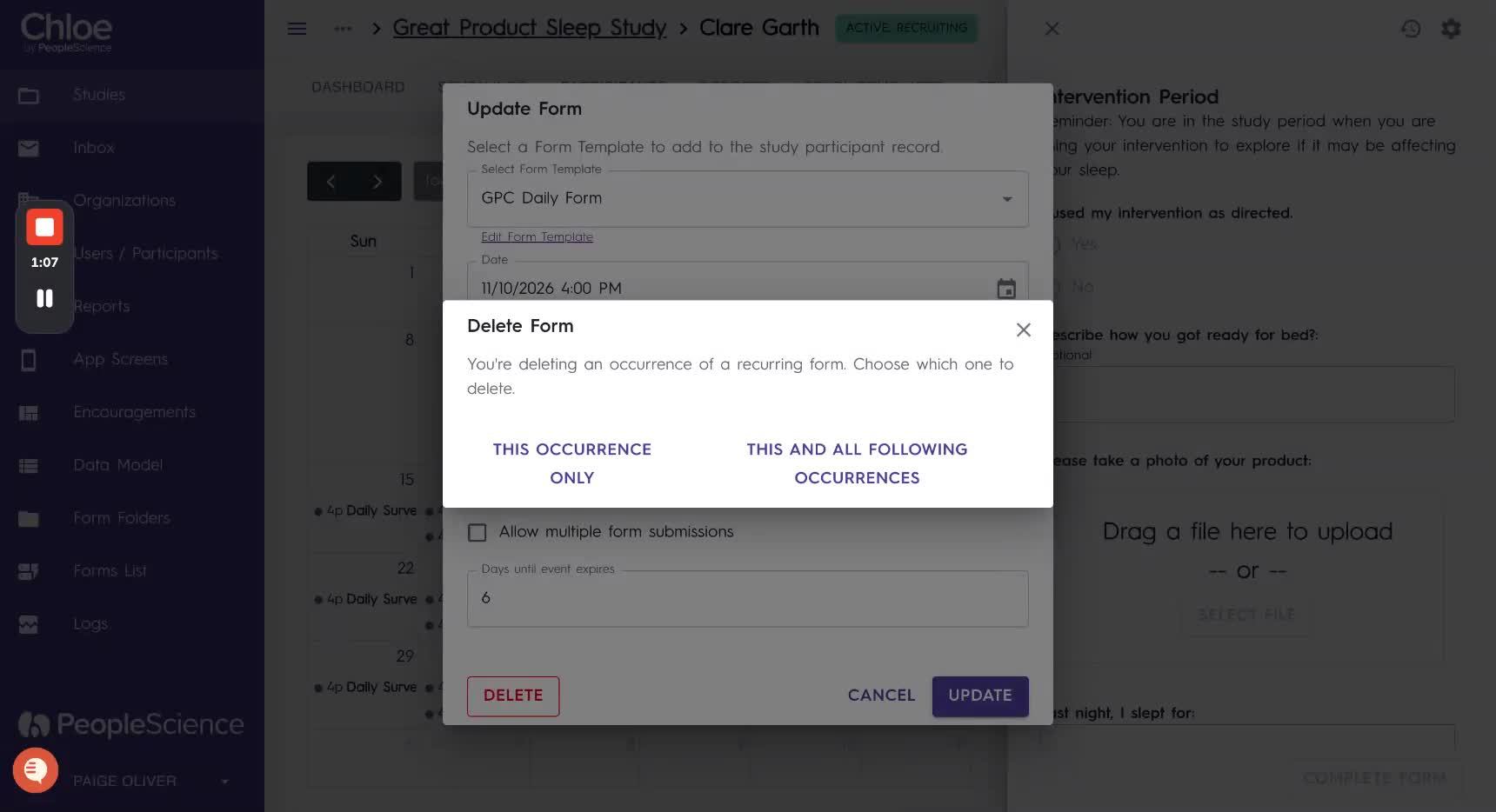
This Occurrence Only: Deletes only the instance of the form you clicked into, on that particular day. All other occurrences stay on the participant's schedule.
This And All Following Occurrences: Deletes the instance you clicked into, plus every future instance of that form for the participant. Past occurrences are not affected.
To close the dialog without deleting anything, click the X in the upper right-hand corner.
Good To Know: Either option only affects the participant whose profile you are in. To change a form's schedule for all participants, update the study template instead.